2026-11-07 · 13 min read
Moving and Making Test Data: Data Migrator and Data Generator, End to End
Two real runs, step by step: migrating filtered accounts between orgs (when 40 of 41 already exist) and generating related test records, then undoing both.
Sooner or later every admin needs data somewhere it isn't: real records copied from one org to another, or realistic fake records in a sandbox. SFDC Police has a tool for each. Data Migrator copies existing records between orgs. Data Generator creates new, realistic records with their relationships. Both can undo what they wrote.
This guide follows two real runs we did on live trial orgs this week, including the parts that didn't go smoothly, because that is where the tools earn their keep.
Part 1: Data Migrator
When to use it
- Seeding a sandbox with a slice of production: the accounts of one region, the last 90 days of cases.
- Moving configuration data (templates, reference records) from a build org to test or production.
- Keeping two orgs in step with Delta mode, which only sends records changed since the last run.
- Repeating a migration safely: matching by an external Id updates what is already there instead of creating duplicates.
The run: 41 filtered accounts into a second org
We moved every Account whose name starts with SFP_QA_ from one test org into another, insert only. Most of them already existed in the target, which made it a good test of what the tool reports.
The migrator is a six-step wizard: Connect → Objects → Matching → Filters → Preflight → Run. Nothing is written until the last step.
Step 1, Connect. Pick the source and target orgs. Both must be open in Chrome; the list shows only orgs with a live session.
Step 2, Objects. Search for the objects to move, or start from an object pack. Related objects can be discovered automatically, and the migrator works out the dependencies and the load order (parents before children).
Step 3, Matching. For each object, choose how records are matched in the target: Insert only creates every row; an upsert strategy matches on an external Id or another field and updates instead. Auto-detect all picks a strategy per object. This step also holds field mapping, user mapping (owners matched by username, then email), record type mapping and lookup mapping for lookups that point outside the migration. We chose Insert only.
Step 4, Filters.
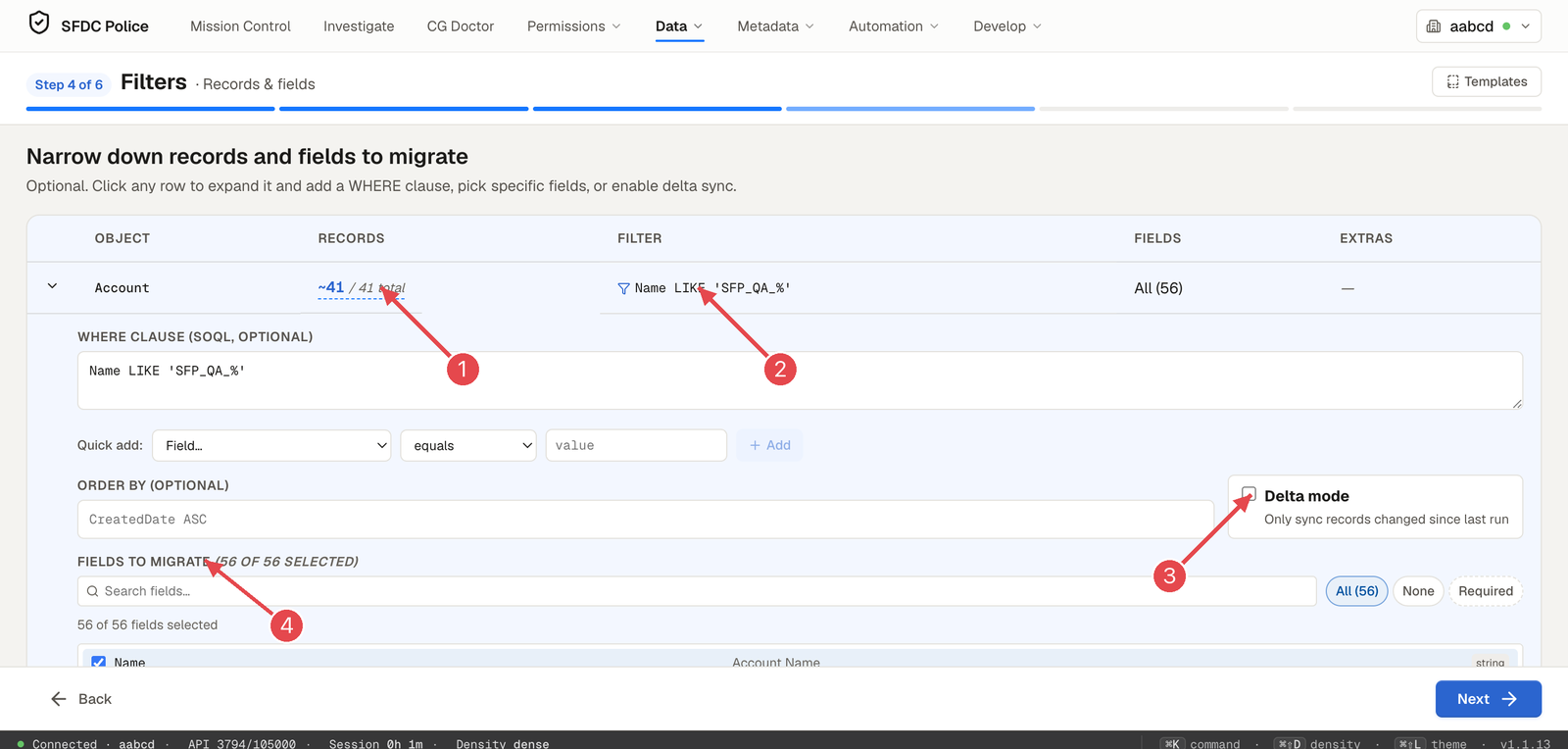
1 How many records the filter matches. 2 The filter. 3 Delta mode. 4 The fields that will be sent.
- Click the object's row to open it.
- Type a WHERE clause (
Name LIKE 'SFP_QA_%'), or build one with Quick add. - The Records column updates: ~41 of 41 total.
- Optionally set ORDER BY, tick Delta mode to send only records changed since the last run, and choose fields: All, None or Required.
Step 5, Preflight.
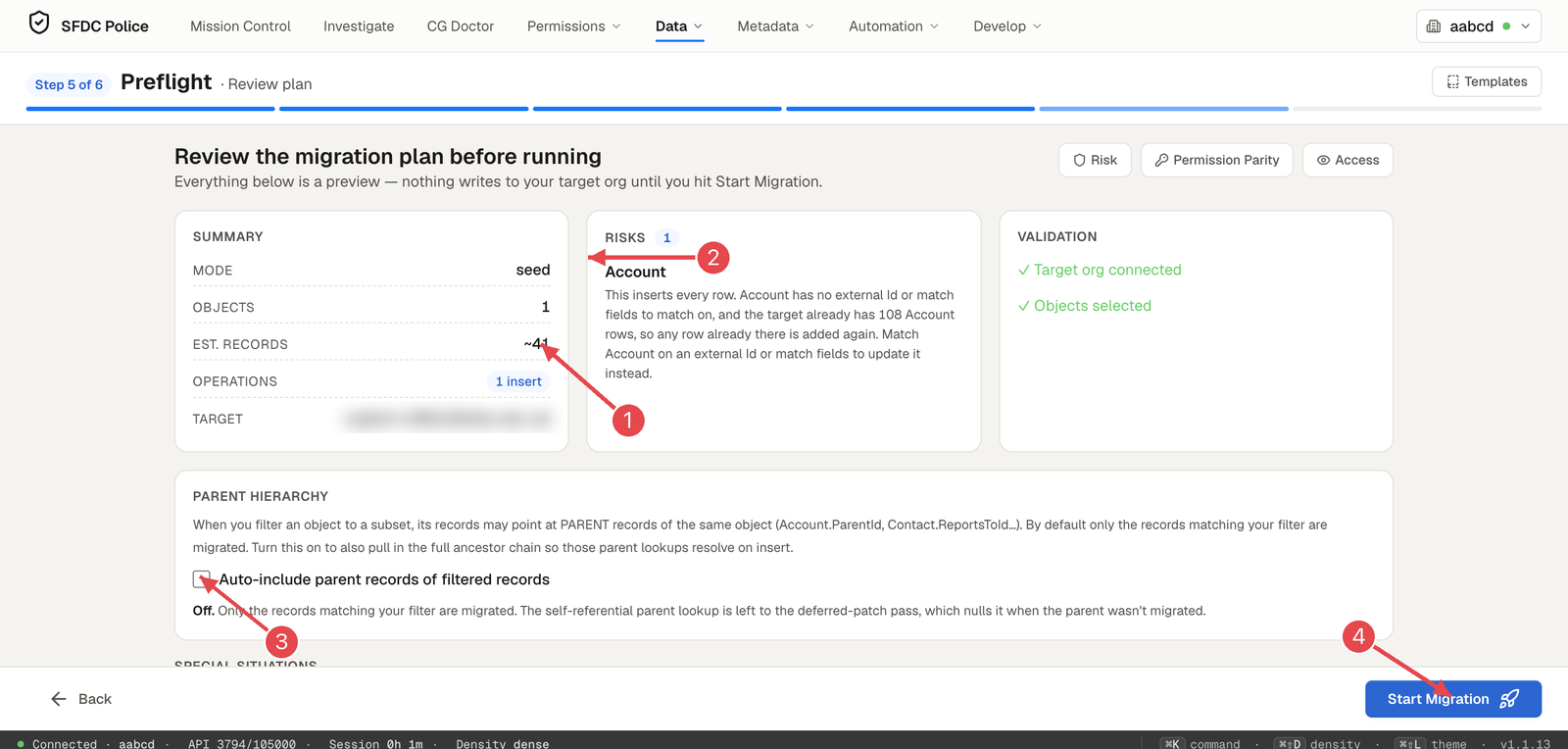
1 Estimated records. 2 Risks, in plain words. 3 Parent hierarchy. 4 Start Migration.
This is the last look before anything is written:
- Summary: mode, objects, estimated records, operations and target org.
- Risks: here, "This inserts every row. Account has no external Id or match fields to match on, and the target already has 108 Account rows, so any row already there is added again." Exactly the warning you want before creating duplicates.
- Validation: target connected, objects selected.
- Parent hierarchy: when you filter, records may point at parents you didn't select (for example an account's parent account). Tick Auto-include parent records of filtered records to bring the ancestor chain along; otherwise that lookup is left blank.
- Permission Parity checks that you (the running user) can create, read and edit the objects and fields in the target before you run; Risk and Access open the matching checks.
Click Start Migration. Because the target was a production org, a confirmation named it and the record count before going ahead.
Step 6, Run.
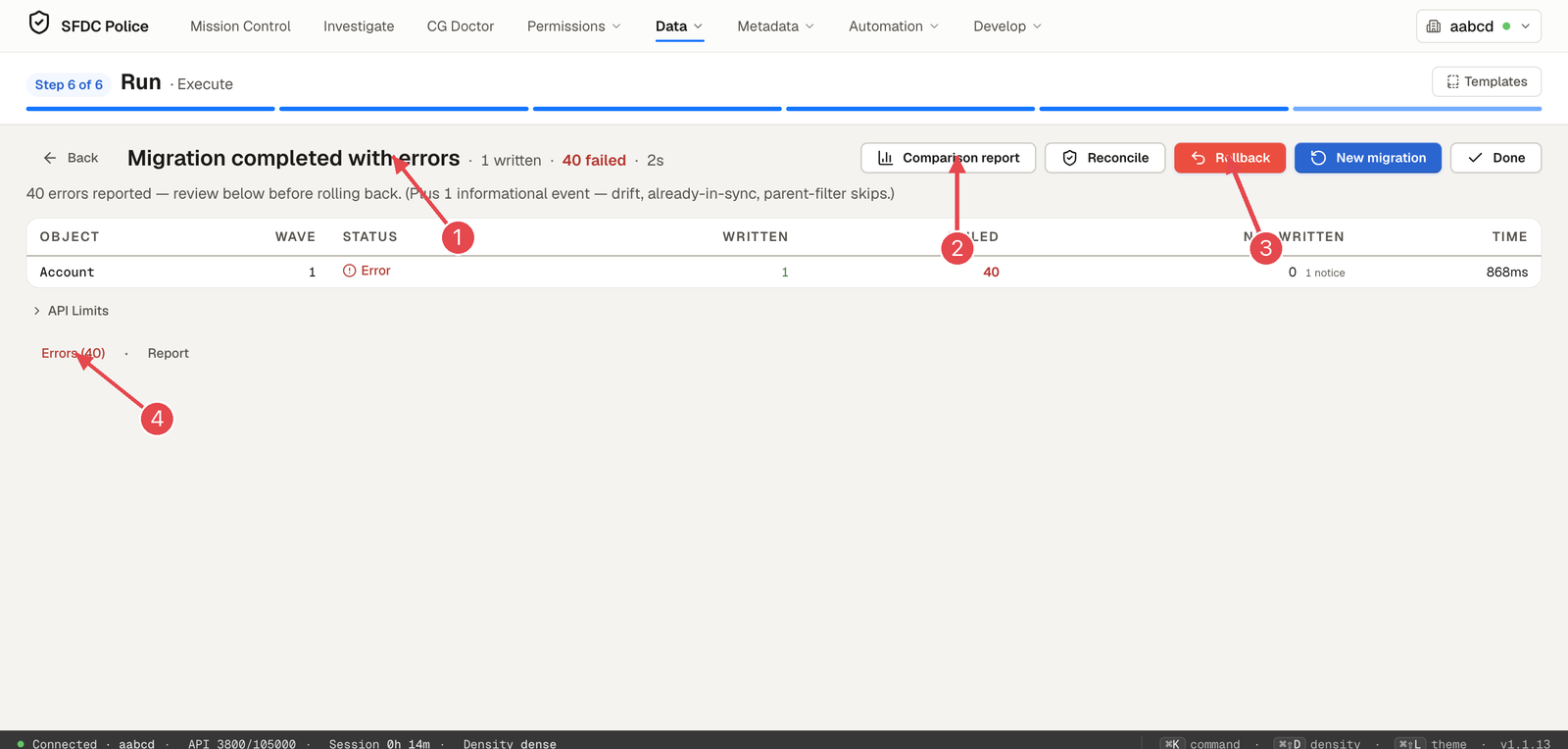
1 The outcome. 2 Comparison report. 3 Rollback. 4 Errors.
The result: 1 written, 40 failed, in 2 seconds. That was correct: 40 of the accounts already existed in the target with the same value in a unique external Id field, so Salesforce refused them with DUPLICATE_VALUE. The one account that didn't exist yet was created.
The run screen gives you four ways forward:
- Errors (40) opens Error Surgery, which groups errors by cause and offers a fix for the whole group. For
DUPLICATE_VALUEit offers to map each row to the existing record the error names, which you Apply or Skip. Retry All re-sends the failed rows. - Comparison report opens the side-by-side view of the run.
- Reconcile runs a post-migration check of the target against the source and adds it to the run report.
- Rollback undoes this run.
Undoing the run
We clicked Rollback and confirmed.
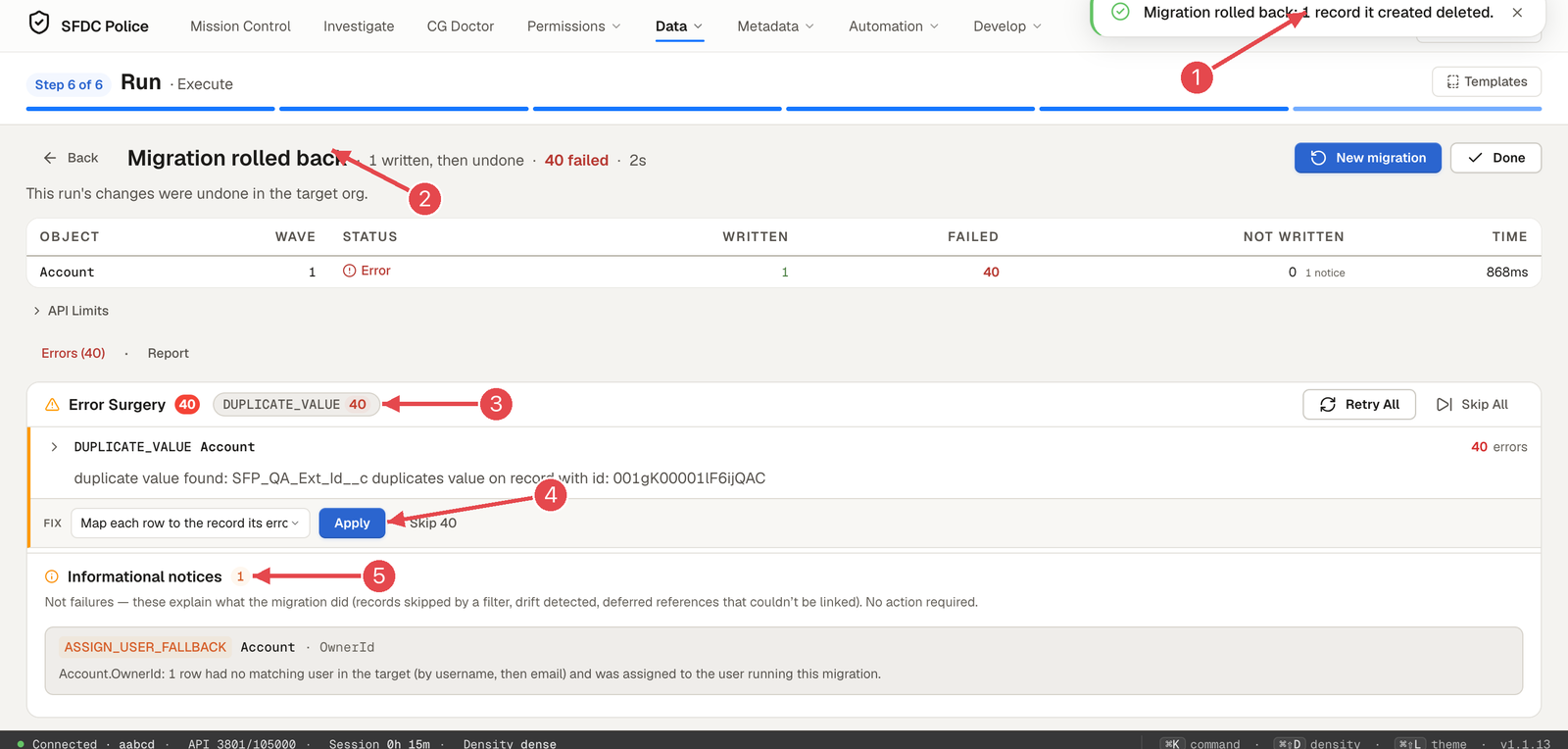
1 "Migration rolled back: 1 record it created deleted." 2 The run now says rolled back. 3 Error Surgery, grouped by error code. 4 The suggested fix. 5 Informational notices.
Rollback deleted exactly the one record the run created and touched nothing else; we confirmed in the target org that it was gone. The Informational notices section explains things that are not failures, here ASSIGN_USER_FALLBACK: one row's owner had no matching user in the target, so it was assigned to the user running the migration.
Tips for your own migrations
- Give migrated objects an external Id and match on it. Re-running then updates instead of duplicating, and the Risks card stops warning.
- Read the Risks card every time. It is written to be read, not skimmed.
- Large parent filters are handled for you (from 1.1.13): when a list of parent Ids would make the query too long for Salesforce, the migrator reads wider, keeps only the rows of the parents you extracted, and says so in the run.
- Run against a sandbox first. The production confirmation is there for a reason.
Part 2: Data Generator
When to use it
- A fresh sandbox with no data that testers need to click through.
- Testing automation at volume: a flow that should handle 200 contacts per account.
- Hierarchies: accounts with parent accounts several levels deep.
- Demo orgs that should look real, with real-sounding company names, phone numbers and descriptions.
The run: 5 accounts and 10 contacts in a Consumer Goods org
Step 1, choose objects. We added Account (5 records) and Contact (10 records), then clicked Discover Dependencies. It found 6 related objects with 10 dependencies: lookups our records need, such as Record Type, Operating Hours and the CG Customer Template.
Step 2, configure.
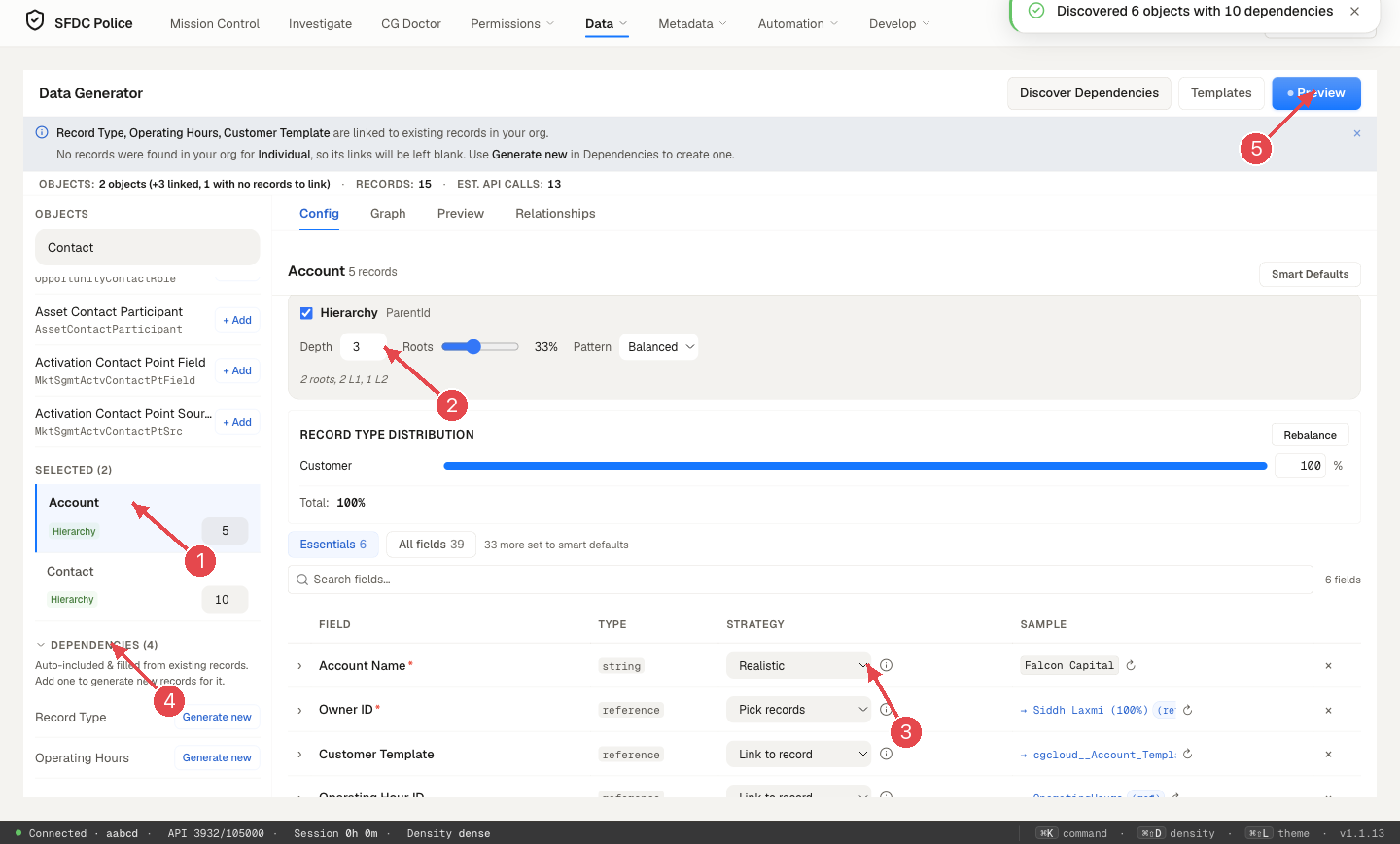
1 Selected objects and how many records each. 2 Hierarchy: depth and how many records are roots. 3 How each field is filled. 4 Dependencies. 5 Preview.
- Hierarchy: Account's Parent Account is a self-lookup, so you choose the depth (3 levels) and the share of top-level accounts (33%) and a pattern (Balanced).
- Record type distribution: how the records spread over record types.
- Fields: each field has a strategy: Realistic values, Pick records (for lookups, existing records), Link to record and others. Essentials shows the fields that matter; All fields shows everything.
- Dependencies: lookups are filled from existing records in your org (here Record Type, Operating Hours and Customer Template). When an object has no records to link (here Individual), the link is left blank, and Generate new creates some instead.
Step 3, Preview.
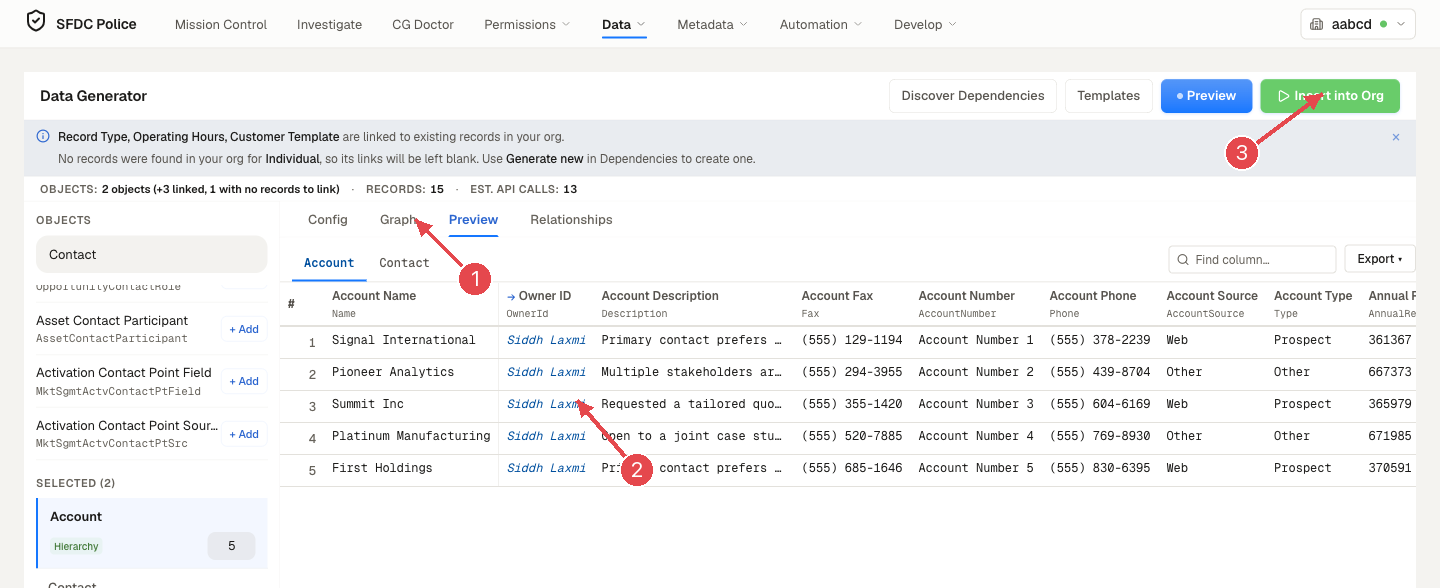
1 The Preview tab. 2 Generated rows, with real-looking values. 3 Insert into Org.
Every row is visible before anything is written: names like Signal International and Pioneer Analytics, phone numbers, owners, account numbers. Change a setting and preview again until it looks right.
Step 4, Insert. Click Insert into Org. Our run took 13 API calls: 6 describes, 3 queries, 2 inserts and 2 updates. The updates are the hierarchy: a record can only point at its parent once the parent exists, so Parent Account links are set in a second pass after the insert.
All 15 records were created. The result also told us something useful: 3 links were not set. Under Needs linking, each of the 3 accounts shows Salesforce's own reason:
FIELD_CUSTOM_VALIDATION_EXCEPTION: The Parent Customer and the Customer Template must have the same Sales Org.
That is a Consumer Goods validation rule doing its job: the generator gave each account an existing Customer Template, and three child accounts got a template from a different sales org than their parent. The accounts themselves were fine; only their Parent Account was left blank. 1.1.13 calls this "Done — some links not set" and shows Salesforce's reason on each row, as above. (Version 1.1.9 calls it "Done — with some failures" and shows the reason only through Copy errors.)
What to do about it: turn the hierarchy off for Account if you don't need parent accounts, or set the Parent Account links afterwards in Salesforce on accounts that share a sales org. Needs linking lists exactly which records are affected.
Undoing the run
- Click Undo all 15.
- The button turns into Delete 15? Click to confirm. Click it again within a few seconds.
- The status changes to Rolled back and the summary says "15 records deleted from your org".
We checked the org afterwards: none of the 15 records remained.
Tips for generated data
- Start small (5 to 10 records per object), check the preview and the result, then scale up.
- Discover Dependencies before configuring; it saves a round of "required field missing" errors.
- In orgs with strict validation rules (Consumer Goods has many), read Needs linking after a run: it tells you which rule said no.
- Save a setup you like with Templates and reuse it in the next sandbox.
Which one do I need?
| You want | Use |
|---|---|
| The same records that exist in another org | Data Migrator |
| Records that don't exist anywhere yet | Data Generator |
| To update records already in the target | Data Migrator with an upsert match |
| Volume for testing automation | Data Generator |
| To undo a run | Rollback (Migrator) or Undo all (Generator) |
This guide shows both tools in SFDC Police 1.1.13. Most of it also works in 1.1.9; what 1.1.9 doesn't have: the Risks warning that rows already in the target will be added again, the ASSIGN_USER_FALLBACK notice, the wider read for large parent filters, and the Data Generator's per-row reasons under Needs linking. Reference docs: Data Migrator, Data Generator.