2026-11-07 · 12 min read
Batch Manager: Run, Schedule and Set Up Consumer Goods Batches Without the Developer Console
Six real use cases: setting up CG batch settings safely, running a batch now, moving a schedule to a quieter hour, removing a stale job, and reading what a run did.
Every Salesforce org runs batch Apex: nightly clean-ups, recalculations, integrations. Consumer Goods Cloud orgs depend on them more than most: promotions, account managers, authorization lists and job lists are all built by batches. The usual tools are the Developer Console's anonymous Apex window and the Scheduled Jobs page in Setup. Batch Manager puts all of it on one screen, and it was rebuilt this month after a week of testing on a live Consumer Goods trial org.
This guide walks through six real situations, step by step. Every screenshot is from that org.
The screen at a glance
Open Automation → Batch Manager.
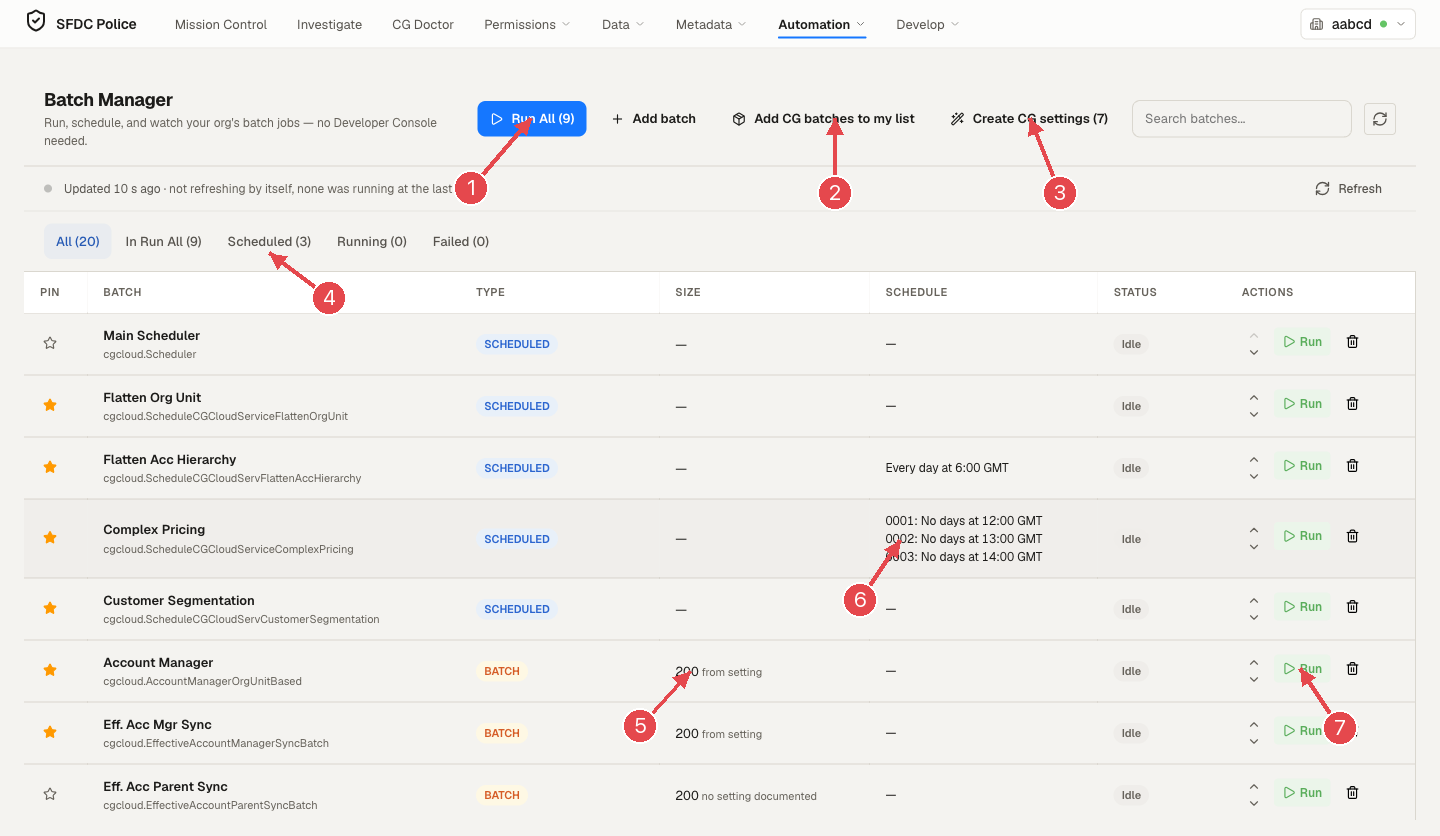
1 Run All starts every batch in your Run All list, in order. 2 Add CG batches to my list. 3 Create CG settings. 4 The tabs: All, In Run All, Scheduled, Running, Failed. 5 Size, and where it comes from. 6 The schedule from the org's batch settings. 7 Run one batch now.
Each row is one batch class. The columns tell you:
- Type: Batch (an Apex batch that processes records in chunks) or Scheduled (a class that is meant to be started on a schedule).
- Size: the batch size a run will use, and where it comes from: from setting means it was read from the org's batch configuration; no setting documented means Salesforce documents no setting for that class, so the default is shown.
- Schedule: for a Processing Services batch, what its rows in the org's batch settings say, one line per sales org, for example "0001: No days at 12:00 GMT". For any other batch, its scheduled Apex job, if it has one; click it to open that job on the Scheduled tab.
- Status: Idle when there is no recent run, otherwise the latest run's Salesforce status, such as Queued, Processing, Completed, Failed or Aborted.
The line under the toolbar says when the job status was last read, for example "Updated 10 s ago · not refreshing by itself, none was running at the last read". Batch Manager only checks Salesforce again by itself while a job is running, and it pauses while the tab is hidden. It used to ask every 3 seconds, which cost about 2,400 API calls an hour per open tab. Press Refresh whenever you want a fresh read.
Use case 1: Setting up a new Consumer Goods org
Situation. A new CG org has the managed package installed, but nothing runs: promotions don't reach stores, account managers aren't flattened, surveys show no products. The batches exist, but the org has no batch settings and nothing is scheduled.
Steps.
- Click Add CG batches to my list (the button appears only in a Consumer Goods org). Batch Manager adds the 19 Consumer Goods batches it knows to your list. Nothing is written to Salesforce; the list is kept in this browser.
- Click Create CG settings (N), where N is the number of settings the org is missing (the button is hidden when none are). A preview opens before anything is saved.
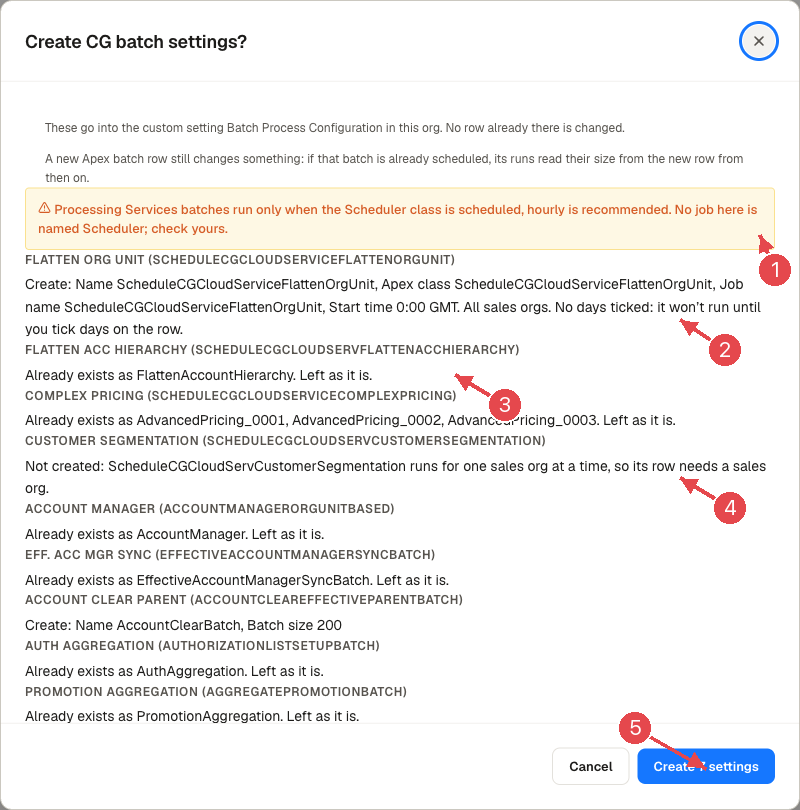
1 A warning when no job named Scheduler is scheduled. 2 What a new Processing Services row will be. 3 Rows that already exist are left as they are. 4 Rows it will not create, and why. 5 Create.
- Read each row. The preview tells you, per batch:
- Create: the exact name, Apex class, job name and start time it will write. Processing Services rows are created with no days ticked, and the preview says so: "it won't run until you tick days on the row." This is deliberate: an earlier version ticked all seven days, which would have started every service, complex pricing on every sales org included, at the next midnight GMT.
- Already exists as … Left as it is: an existing row is never changed.
- Not created: for example Customer Segmentation runs for one sales org at a time, so its row needs a sales org you choose.
- If the yellow warning appears ("Processing Services batches run only when the Scheduler class is scheduled, hourly is recommended. No job here is named Scheduler"), schedule the Main Scheduler (
cgcloud.Scheduler) after this step (the warning recommends hourly). Open the Main Scheduler row and click Schedule the Scheduler class on its Config tab, or use the + on the Scheduled tab. Without it, Processing Services never start. The check looks for a job whose name contains "Scheduler", because Salesforce doesn't say which class a scheduled job runs. If your Scheduler job has another name, the warning still shows; check that job yourself. - Click Create N settings. Only the rows marked Create are written, to the custom setting Batch Process Configuration. Existing rows are not changed. One thing does change: if an Apex batch is already scheduled, its runs read their size from the new row from then on, and the preview says so.
- Tick the days for the services you want running. Click the batch's row, and on its Config tab tick the days on each sales org's row and click Save Changes. You can also do it in Salesforce Setup under Batch Process Configuration (then press Refresh in Batch Manager). The Schedule column now shows the days.
Good to know. One custom setting serves two kinds of batch. Apex batches read only their Batch Size, from the row named exactly as Salesforce's help table documents. Processing Services rows are found by Apex class and sales org, one per sales org, with days and a start time in GMT. Processing Services on Hyperforce run in Salesforce's Consumer Goods cloud, so the org's debug logs show little of their work. Apex batches run in the org itself, so their logs show every query.
Use case 2: Running one batch now
Situation. You changed an authorization list and want the products to appear in surveys and orders now, not tonight. That is the job of Auth Aggregation (cgcloud.AuthorizationListSetupBatch).
Steps.
- Type part of the name in Search batches to find it.
- Click Run on its row. The Run dialog explains what you are about to start.
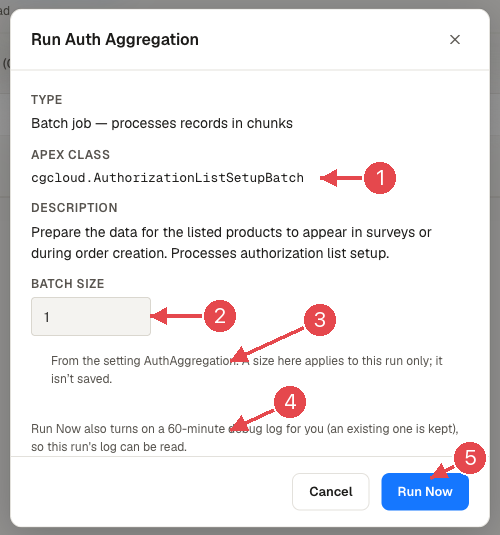
1 The Apex class that will run. 2 Batch size, filled in from the org's setting. 3 Where that size came from. 4 The debug log note. 5 Run Now.
- Check the Batch size. It is pre-filled from the org's setting (here, the AuthAggregation row says 1). You can change it, and a size you type applies to this run only; it is not saved back to the setting.
- Click Run Now. Batch Manager also turns on a 60-minute debug log for you (an existing one is kept), so this run's log can be read afterwards.
- The row switches to Queued, then Processing. While it runs, the list refreshes by itself with a short back-off, and stops once nothing is running.
Why trust the button. One click sends exactly one Database.executeBatch. We traced the whole path after seeing two jobs start in the same second on a test run, and pinned it with tests.
Use case 3: Moving a scheduled job to a quieter hour
Situation. A data loader job runs at 12:51 PM, in the middle of the working day, and slows everything down. You want it at night.
Steps.
- Open the Scheduled tab.
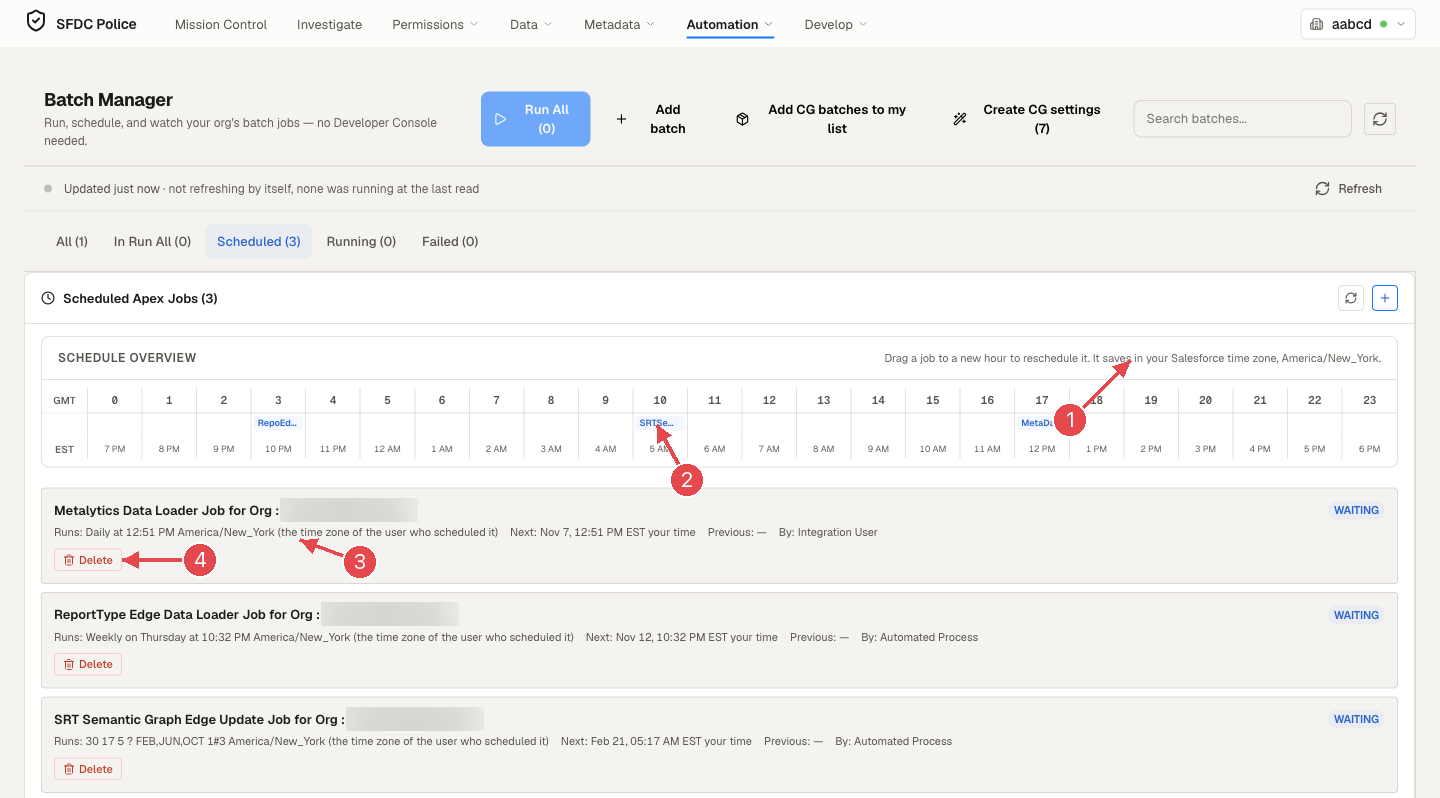
1 Drag a job to a new hour; it saves in your Salesforce time zone. 2 A job on the clock. 3 Whose time zone the schedule is in. 4 Delete.
- The Schedule overview shows the day as 24 columns, in GMT and in your own time zone, with each scheduled job on its hour.
- Read each job's line, for example "Runs: Daily at 12:51 PM America/New_York (the time zone of the user who scheduled it) · Next: Nov 7, 12:51 PM EST (your time)". Your time is your browser's time zone. A cron's hours are wall-clock hours in the zone of the user who scheduled it, not GMT. Batch Manager used to label them GMT, so a job could land hours away from where you dropped it.
- Drag the job to the new hour. It is saved in your Salesforce time zone. If that is different from the job's old zone, the dialog tells you before you confirm.
- Check the class in the dialog. Batch Manager finds the job's Schedulable class by the job's name; when it can't confirm the match, it says "Matched by name" and asks you to check it.
- Confirm. Batch Manager first checks that the class can still be scheduled (it exists, has a no-argument constructor and is Schedulable). Only if that passes does it stop the old schedule and create the new one under the same name. If the new schedule fails, it puts the job back at its old time. If even that fails, it tells you exactly how to re-create the job.
Good to know. Salesforce can't change a scheduled job's time in place, so a move deletes the job and creates it again as you. The job then runs as you, a paused job becomes scheduled again, and it is created with new ClassName(), so values a job was scheduled with through its constructor are lost. Only scheduled Apex that runs at a single hour can be dragged. A job that runs at several hours, or a report schedule (it has no Apex class to re-create), stays where it is.
Use case 4: Removing a stale schedule
Situation. An old integration is retired, but its scheduled job still fires every night and fails.
Steps.
- Open Scheduled and find the job by name, owner (By:) and next run.
- Click Delete on the job and confirm.
- Batch Manager stops it with
System.abortJob. Salesforce refuses the REST delete on a scheduled job (it answersINSUFFICIENT_ACCESS_OR_READONLYeven for the user who scheduled it), which is why the old Delete button failed. The job Id is checked to be a real scheduled-job Id before any Apex runs.
Careful. Managed packages schedule their own jobs (the three on our org are package jobs). Delete one only when you know what it does; the package will not recreate it for you.
Use case 5: Running several batches in order
Situation. After a data load, you want to kick off the usual set of CG batches in one click instead of eight.
Steps.
- Star (Pin) the batches you want. They appear under In Run All.
- Use the up and down arrows in the Actions column to put them in the order you want them started. The arrows show on the All tab when the search box is empty.
- Click Run All (N). Batch Manager starts them one at a time, in list order, each with its usual size from the settings. If one fails to start, the rest still go.
- Watch the Running tab, and check Failed when they finish.
Careful. Started in order is not finished in order: Salesforce runs up to five batch jobs at the same time and queues the rest, so a later batch can start before an earlier one has finished. When one batch truly depends on another (for example the account managers need the flattened hierarchy), run them one by one with Run and wait for each to complete. Run All also refuses to start if it can't tell a batch's size from the settings, rather than guessing one; it names those batches so you can run them individually.
Use case 6: Finding out what a run did
Situation. A batch says Completed, but the data doesn't look right. Did it touch the records you expected? Did any chunk fail?
Steps.
- Right after you start a batch, a bar says "Started …" with Open this run's report. For an older run, open the batch and click the run in its Jobs list.
- The run report shows the result, the errors per failed chunk in Salesforce's own words, the queries and limits used, and which records were likely changed (on request, because it costs extra queries).
- Read the small print on each figure. The report only claims what the debug logs can show: row counts say "sent to the database (from logs)", figures say how many chunk logs they come from ("from 3 of 4 chunk logs"), and a dash with a reason replaces a zero that only means "not recorded" (for example managed code, whose details Salesforce hides from logs).
Quick reference
| You want to | Do this |
|---|---|
| Fill your list with the CG batches | Add CG batches to my list (writes nothing to Salesforce) |
| Create missing CG batch settings | Create CG settings, read the preview, then Create |
| Start one batch now | Run on the row, check the size, Run Now |
| Use a different size once | Change it in the Run dialog (not saved) |
| Move a scheduled job | Scheduled tab, drag it to a new hour |
| Stop a scheduled job | Scheduled tab, Delete |
| Start several at once | Pin, order with the arrows, Run All (started in order, not finished in order) |
| Start a batch from a record page | The floating panel's Batch tab (see the floating panel guide) |
This guide describes Batch Manager in SFDC Police 1.1.13. Version 1.1.9 has an older Batch Manager: no run report, no settings preview, a status check every 3 seconds, schedule times labelled GMT, and a Delete that Salesforce refuses. Its Setup CG configs button writes the missing settings at once, with no preview and all seven days ticked, so don't use it on an org you care about; wait for 1.1.13. See also the Batch Manager docs.