All docs pages (49)
Batch Manager
Run, schedule and watch your org's batch Apex without the Developer Console. From version 1.1.13 it also previews and creates Consumer Goods batch settings.
Updated 2026-11-07
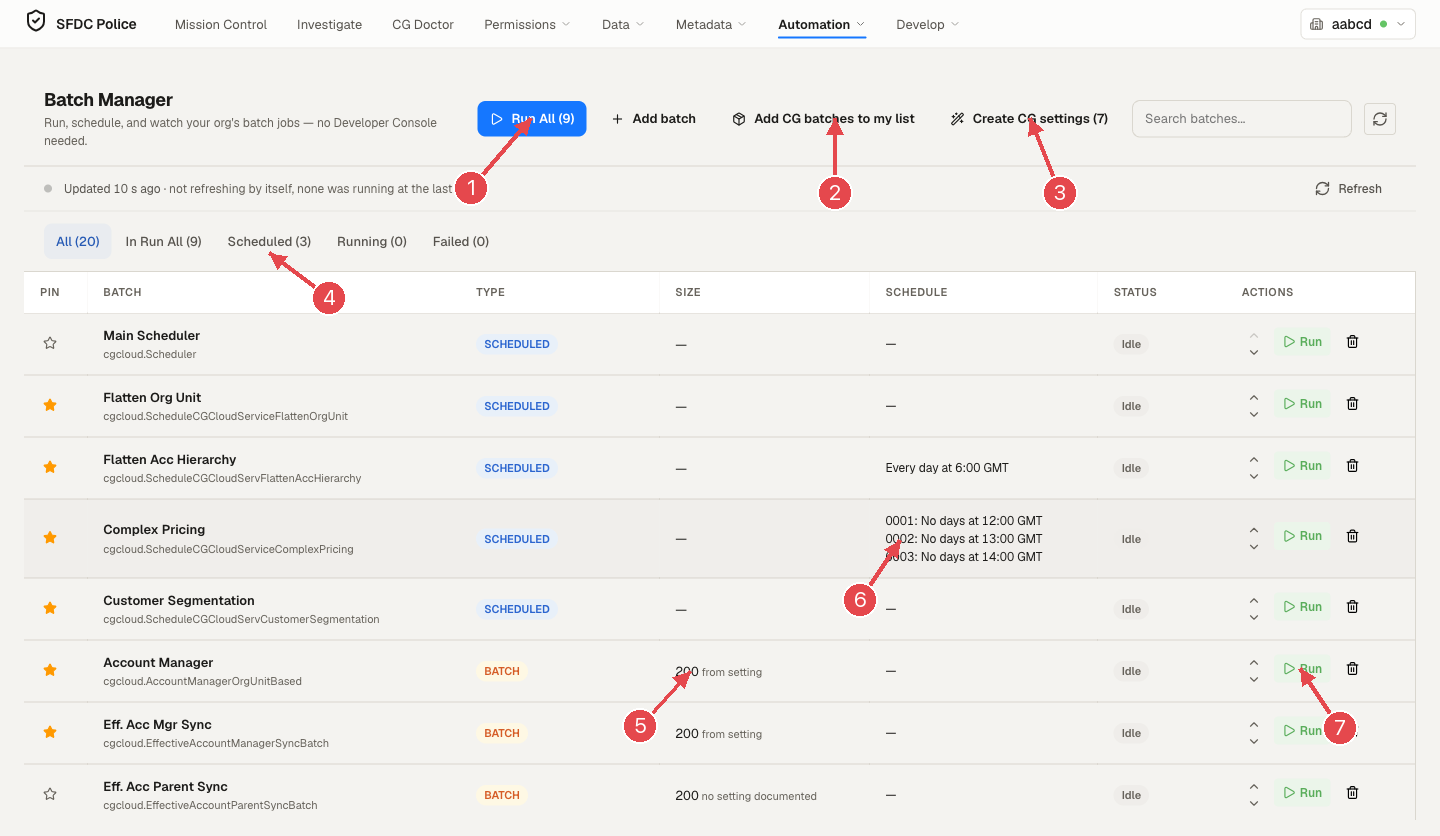
Batch Manager (Automation → Batch Manager) lists the batch classes you work with, runs them, and manages scheduled Apex. For a walkthrough with screenshots and six use cases, read Batch Manager: run, schedule and set up Consumer Goods batches.
Version note. Version 1.1.9, the version before 1.1.13, has the list, its tabs, Run, Run All and creating a schedule with +. The items marked (from version 1.1.13) below are not in 1.1.9. In 1.1.9, deleting or dragging a scheduled job fails with an error and leaves the job as it was. 1.1.9 also labels schedule hours as GMT, but Salesforce runs a schedule in the time zone of the user who created it, so a job created with + can run hours off.
The list
| Column | Meaning |
|---|---|
| Pin | Pinned batches form the In Run All list |
| Batch | Label and Apex class |
| Type | Batch (processes records in chunks) or Scheduled (started on a schedule) |
| Size | Batch size a run uses. From version 1.1.13: from setting (read from the org's batch configuration) or no setting documented |
| Schedule | When it runs. From version 1.1.13: what the org's batch settings say, one line per sales org where relevant |
| Status | Idle, Queued, Processing, Completed, Failed |
| Actions | Reorder (up/down), Run, remove from the list |
Tabs: All, In Run All, Scheduled, Running, Failed. Refresh re-reads the list. While a job is running, the list re-reads it on its own. From version 1.1.13 it does this only while the tab is visible, backing off 5/10/20/30 seconds, and otherwise says when it last read.
Running batches
- Run opens a dialog with the type, Apex class, description and batch size. The size is pre-filled (from version 1.1.13, from the org's setting); a size you type applies to that run only. Run Now also turns on a 60-minute debug log for you (an existing one is kept) so the run's log can be read. One click starts one run:
Database.executeBatchfor a batch, or the class'sexecute()for a Scheduled entry. - Run All starts every pinned batch one at a time, in list order, each with its usual size. Salesforce runs up to five batch jobs at once, so they are started in order, not guaranteed to finish in order. From version 1.1.13, Run All refuses to start if a batch's size can't be determined, and names it.
- (from version 1.1.13) After a start, Open this run's report shows the result, errors per failed chunk, queries and limits, and (on request) the records likely changed. Figures say how many chunk logs they come from; a value that wasn't recorded shows a dash and the reason.
Consumer Goods batches
- (from version 1.1.13) Add CG batches to my list adds the known Consumer Goods batches to your list. It writes nothing to Salesforce.
- (from version 1.1.13) Create CG settings previews, row by row, what it would add to the custom setting Batch Process Configuration: Create (name, class, job name, start time), Already exists … left as it is (existing rows are never changed) or Not created with the reason (for example Customer Segmentation needs a sales org). New Processing Services rows have no days ticked, so nothing starts until you tick days. A warning shows when no job named Scheduler is scheduled, because Processing Services run only through it.
- (from version 1.1.13) Apex batches read only their Batch Size, from the row named as Salesforce documents. Processing Services rows are matched by Apex class and sales org, with days and a start time in GMT.
Scheduled Apex
- (from version 1.1.13) The Scheduled tab shows each job's schedule in the time zone of the user who scheduled it (a cron's hours are wall-clock hours in that zone, not GMT), the next run in your time, the previous run and who scheduled it.
- Schedule overview shows the day in GMT. (From version 1.1.13) It also shows your zone, and you can drag a scheduled Apex job to a new hour to reschedule it; it is saved in your Salesforce time zone, and the dialog says if that changes the job's zone. The class is checked first (exists, has a no-argument constructor, is Schedulable); nothing is removed unless that passes, and a failure after removal restores the job. Report schedules can't be dragged.
- (from version 1.1.13) Delete stops a job with
System.abortJob, because Salesforce refuses a REST delete of a scheduled job. The Id is validated before any Apex runs. - + creates a new schedule (from version 1.1.13, in your Salesforce time zone).
Related reading
- The floating panel, tab by tab: the Batch tab runs batches and any Apex class from a record page.
- Debug Logs: read a run's logs.