2026-11-07 · 14 min read
The Floating Panel, Tab by Tab: Every Tool You Get on a Salesforce Record
A complete guide to the SFDC Police floating panel with real use cases for each tab: Actions, Access (record and user), Query, History, Move, Batch and Status.
The floating panel is the part of SFDC Police you use without leaving Salesforce. Click the SFDC Police icon in Chrome's toolbar on any Salesforce page and the panel opens on top of it, already knowing which org you are in and which record you are looking at. Click the icon again (or the ✕) to close it.
It has seven tabs: Actions, Access, Query, History, Move, Batch and Status. Move only appears on a record page. The panel shows as many tabs as fit its width and puts the rest behind the ⋯ button (at the usual width, Batch and Status); the small number on ⋯ is how many tabs are tucked away. A red PRODUCTION strip across the top reminds you when you are in a production org.
Every screenshot below was taken on a Consumer Goods Cloud account record, NTO Store #203, in a live trial org. Email addresses and the org Id are blurred.
Actions: what you can do with this record
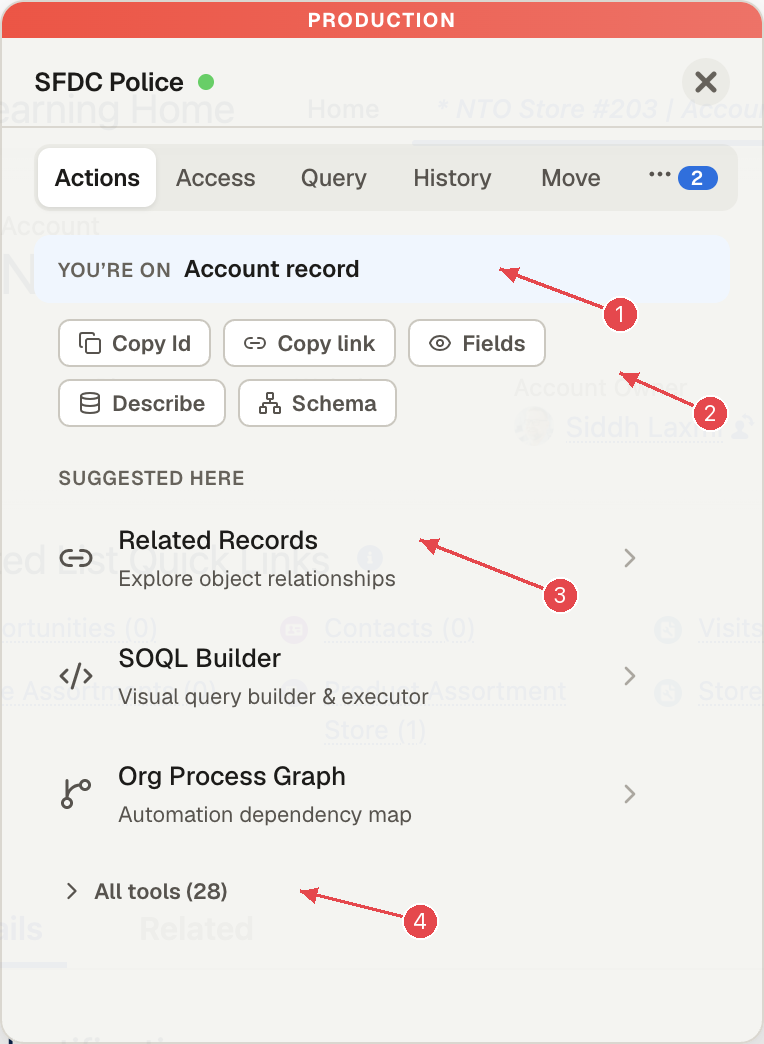
1 What you are on. 2 One-click tools for this record. 3 Tools suggested for this page. 4 Every tool.
What it is. The starting point. It names what you are on ("You're on Account record") and gives you the tools that make sense there.
- Copy Id and Copy link put the record Id, or a short link to the record (
https://your-org/001…), on your clipboard. - Fields shows this record's field values right in the panel, by API name.
- Describe shows the object's describe (fields, types, settings) in the panel; Schema shows the objects it is related to.
- Suggested here lists the tools most useful on this kind of page. On a record: Related Records, SOQL Builder and Org Process Graph. Tools you pin (the star) or use often show above it as Pinned and Frequent, and are not repeated below.
- All tools (28) lists the rest of SFDC Police's tools, so you never need to remember where a tool lives. The number is how many are left once Pinned, Frequent and Suggested are taken out.
Use cases
- Sharing a record in a ticket. Copy link gives a short link that opens the record for anyone who can see it.
- "Which field is that?" Open Fields to see the API names and values behind the page before writing a formula, a flow or a query.
- "What is connected to this account?" Related Records from Suggested here.
Access → Record: who can see this record, and why
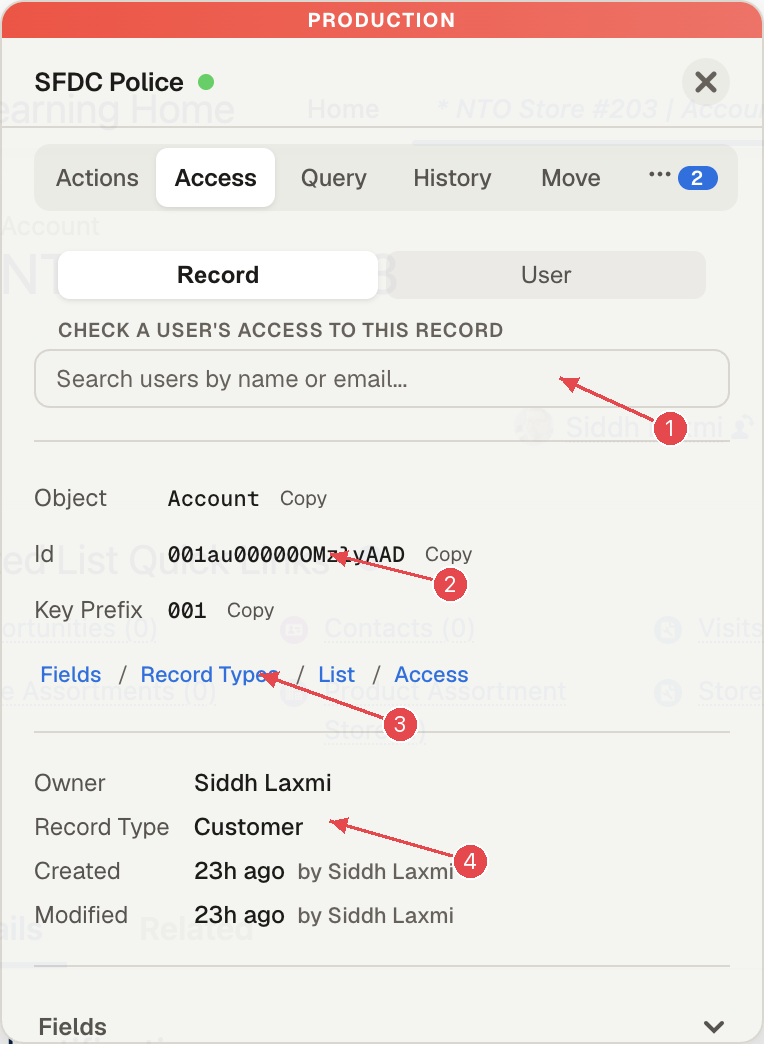
1 Check a user's access to this record. 2 Object, Id and key prefix, with copy buttons. 3 Shortcuts to the object's fields, record types, list view and access settings. 4 Owner, record type, created and modified.
What it is. Facts about the record plus the most common access question.
How to check one user's access
- Open the record and the panel, then Access → Record.
- In Check a user's access to this record, type a name or email and pick the user.
- Access X-Ray opens with the verdict (Read / Edit / Create / Delete) and ten layers: object permissions, org-wide default, ownership, role hierarchy, sharing rules, system bypass permissions (View All, Modify All), Salesforce's own record-access verdict, field-level security, page layout and record type access.
- Open a layer for its detail. Hide access check collapses it; the ✕ in the search box lets you check another user.
From version 1.1.13 the check opens as soon as you pick the user. In 1.1.9 the section has no title; after picking the user, click Access X-Ray to open it and again to close it.
On our org, a rep without View All on a Private Account got "No access — record is invisible", and a rep with View All on Account got "Read". Both match Salesforce's own UserRecordAccess answer.
Use cases
- "My rep can't see this account." Pick the rep and read which layer says no: usually the org-wide default with no role or sharing-rule grant.
- "Why can this intern see salaries?" The System Bypass layer names permissions like View All Data, and Object Permissions shows the profile or permission set it comes from.
- Before and after a sharing change. Check one user who should keep access and one who should not.
To look at a different object's details, use Look up another object at the bottom of this tab (from version 1.1.13). It lists up to 50 matches, says how many more there are, and leaves out Share, Feed, History and ChangeEvent objects unless you type those words.
Access → User: one user, everything about them
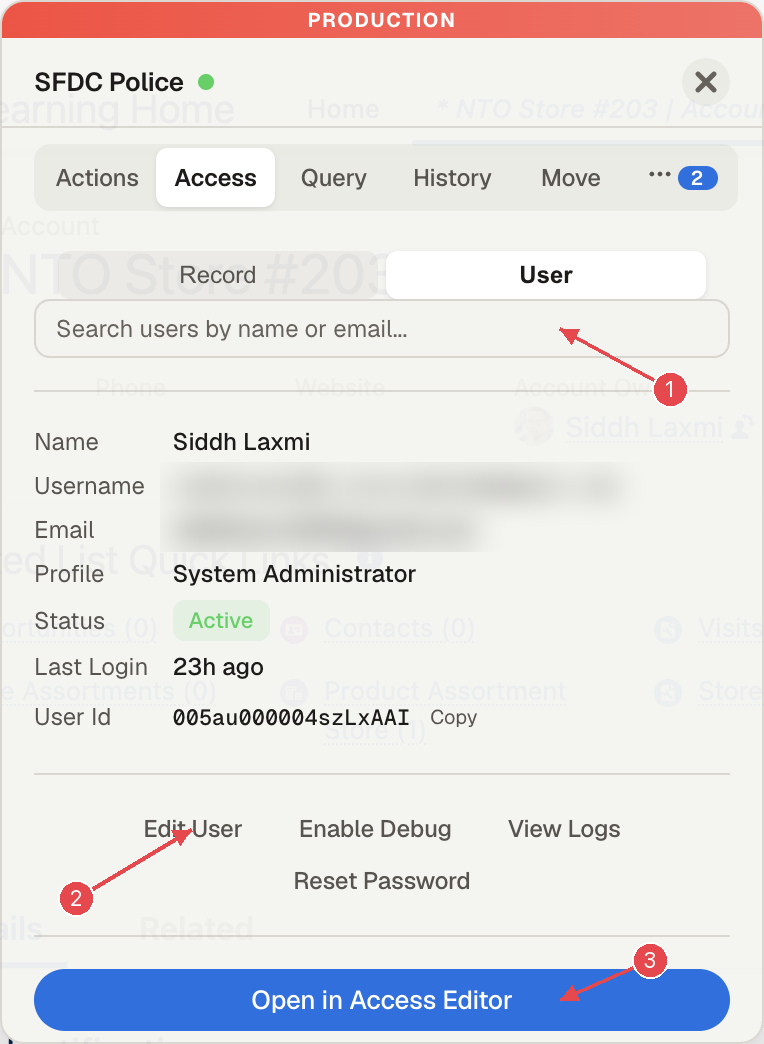
1 Search for a user. 2 Edit User, Enable Debug, View Logs, Reset Password. 3 Open in Access Editor.
What it is. A user card: name, username, email, profile, role, status, last login and user Id, with the actions you need most often when someone reports a problem. Below it are the user's permission set groups and permission sets. For an active user other than you, Login As (and Incognito) also appear.
Use cases
- "It doesn't work for me." Pick the user and click Enable Debug, ask them to try again, then View Logs to read what happened.
- "Can you check my access?" Open in Access Editor opens that user in the full-page Access Editor.
- Locked out. Reset Password asks you to confirm first, then has Salesforce email the user a reset link. It needs the Manage Users permission and does not work on your own user.
- Is this account still used? Status and Last Login answer it without opening Setup.
Query: run SOQL right on the record, and find related records without writing joins
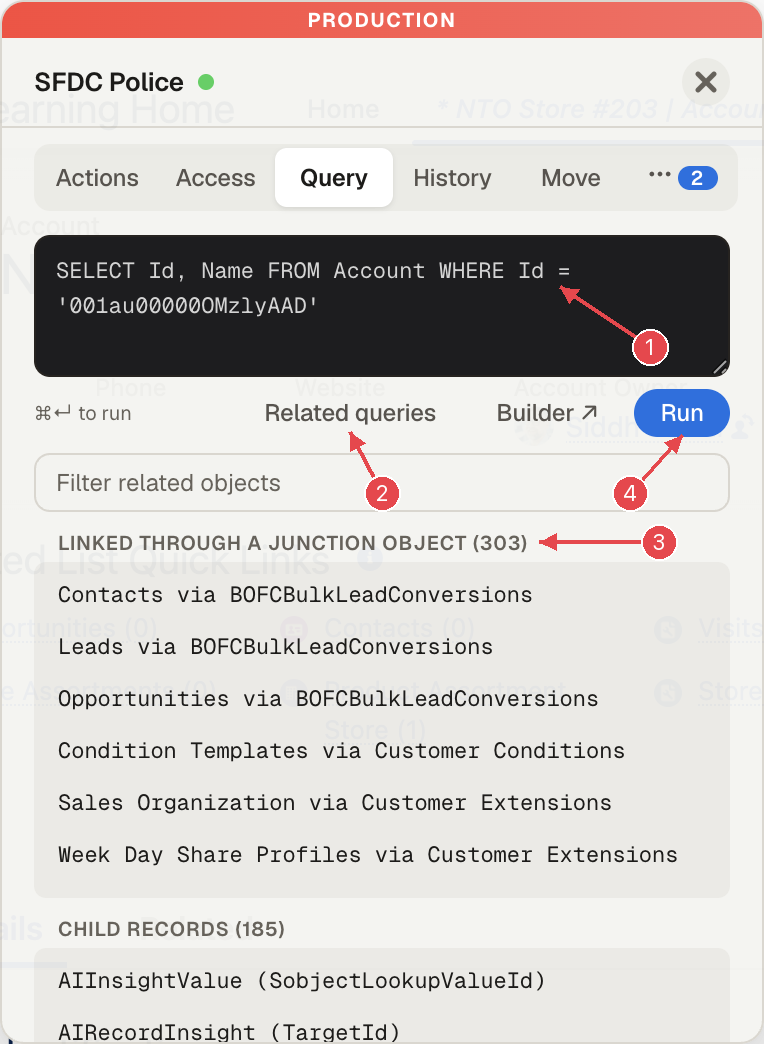
1 The query editor, filled in for this record. 2 Related queries. 3 Linked through a junction object. 4 Run.
What it is. A query editor that starts with this record's query (SELECT Id, Name FROM Account WHERE Id = '…'). Press ⌘↵ (Ctrl+Enter on Windows) or Run. Builder ↗ opens the same query in the full SOQL Builder.
Related queries (from version 1.1.13) writes the query for you. It lists the objects related to this record, in three groups. It leaves out system objects (Share, History, Feed and the like) and the owner, created-by, last-modified-by and record-type lookups.
- Linked through a junction object: one
INquery per route. On an account, Customer Sets via Customer Set Customers gives the customer sets the account belongs to, through the junction object, without you writing a semi-join. It looks for junctions among the first 30 child objects (your custom objects first), so on an object with very many children some routes may be missing. - Child records: this record's children, for example its visits or job lists.
- Parent records: the records this one points to, for example its customer template.
How to use it
- Click Related queries.
- If there are more than eight suggestions, type in Filter related objects to narrow the list (an account can have hundreds of relationships).
- Click a suggestion. It goes into the editor; nothing runs until you press Run, so you can add fields or filters first.
Use cases
- "Which customer sets is this store in?" One click instead of a nested query.
- "Show me this account's visits from last week." Pick Visits, add
AND CreatedDate = LAST_WEEK, run. - Learning an unfamiliar data model. Browse the three groups on a record you know.
History → My actions: what you changed through SFDC Police
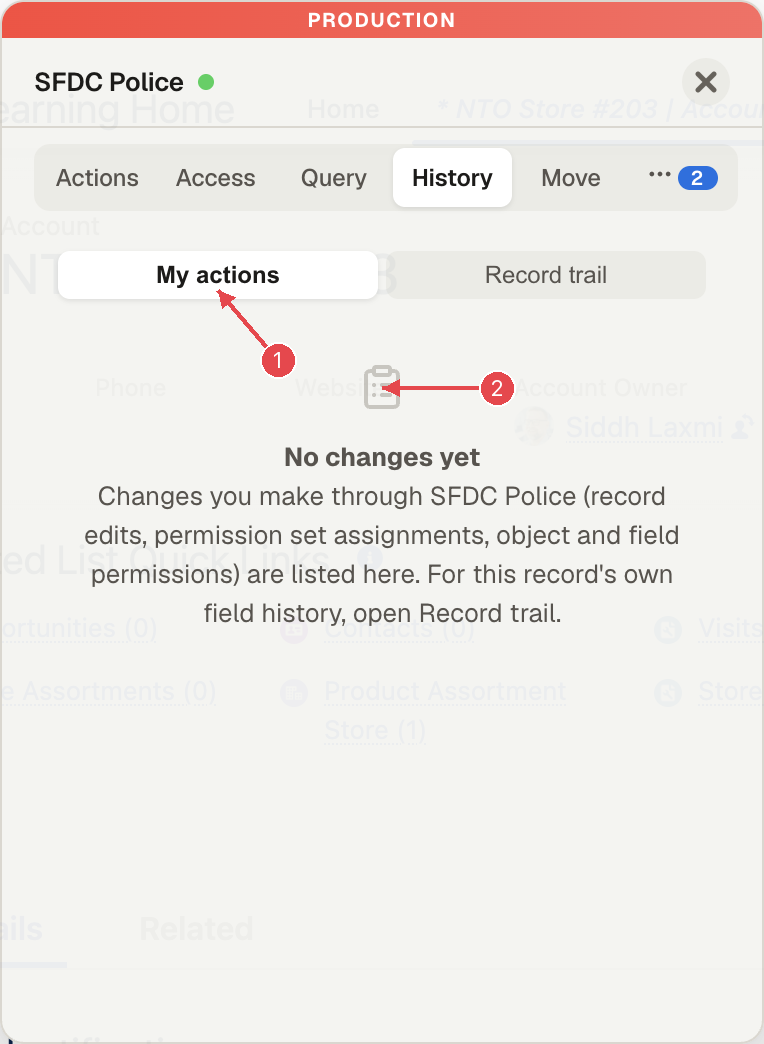
1 My actions. 2 Your changes appear here.
What it is. Your own most recent changes made through SFDC Police: record edits, permission set assignments, and object and field permissions. The panel shows the last five, each with its time and whether it worked; View All Transactions opens the full list. Until you change something it says so plainly ("No changes yet"). For the record's own field history, use Record trail.
Use cases
- "What did I just change?" The last few changes are one click away, with any that failed marked.
- Writing up a change. Open View All Transactions for the full list to put in the ticket or change log.
History → Record trail: what automation touches this record
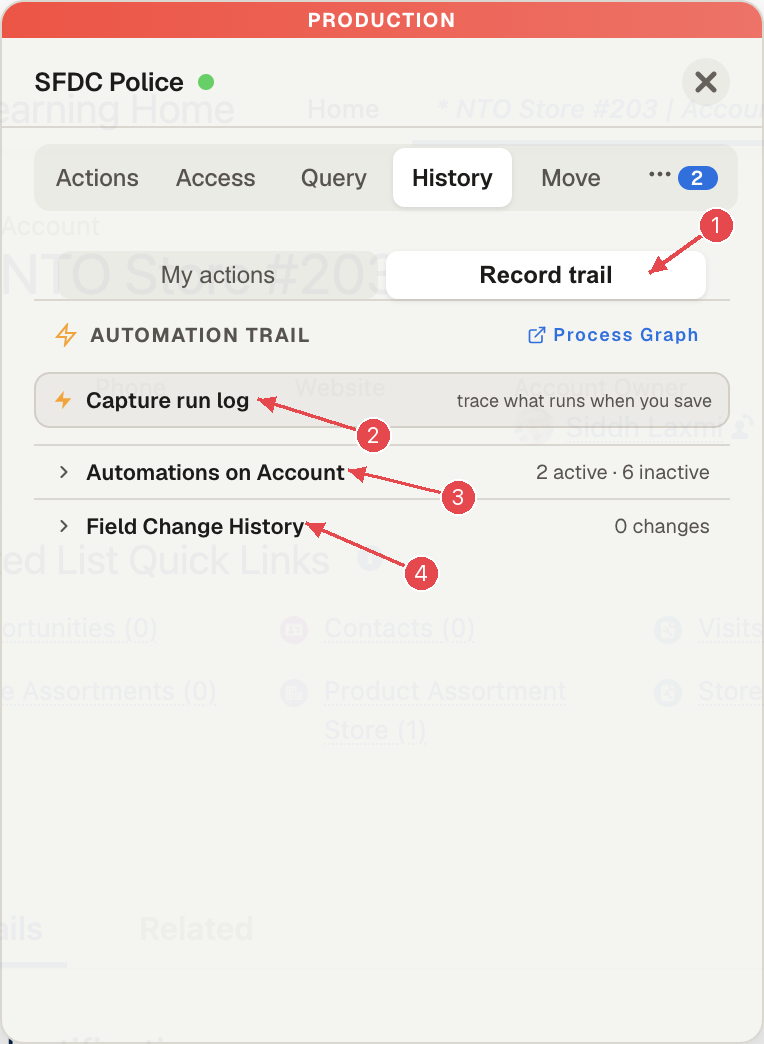
1 Record trail. 2 Capture run log. 3 Automations on this object. 4 Field Change History.
What it is. Everything that can change this record, and what did:
- Capture run log turns on debug logging for your user for about 30 minutes. Edit and save the record yourself, then click View captured log: it opens Debug Logs, filtered to you and refreshing on its own, and the log of that save shows which flows, triggers, workflow rules and validation rules ran. It only logs saves you make, not saves by other users or integrations.
- Automations on Account lists the triggers, flows, validation rules and workflow rules on the object, active and inactive (here "2 active · 6 inactive").
- Field Change History shows the last 20 tracked field changes on this record. It only works for fields with field history tracking turned on.
- Process Graph opens the full automation map for the object.
Use cases
- "Something keeps overwriting this field." Turn on Capture run log, save the record yourself, and read in the log which automation set it. If the overwrite comes from another user or an integration, turn on logging for that user instead (Access → User → Enable Debug).
- "Was this value changed or entered wrong?" Field Change History shows who changed it and when (for tracked fields).
- Before deactivating a flow. See what else runs on the object first.
Move: copy this record to another org (Beam)
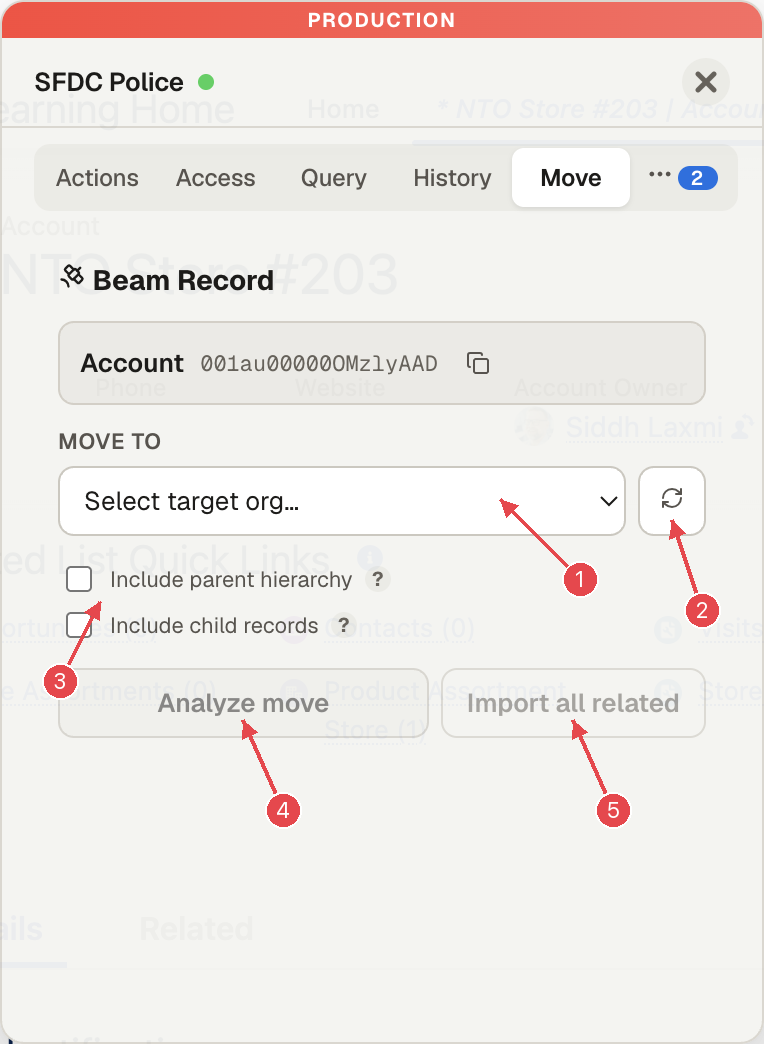
1 Pick the target org. 2 Refresh the list of orgs. 3 Include parents or children. 4 Analyze move. 5 Import all related.
What it is. Copies the record you are on into another org you are signed in to, with its parents and children if you want. It writes to the target org for real, so read the plan before you click Beam.
How to use it
-
Open the target org in another tab first, so you have a live session there.
-
Under Move to, pick it. Orgs are listed by name and host (for example "ABCD · orgfarm-…"); press refresh if it is missing.
-
Parents the record needs (required lookups) always come along. Tick Include parent hierarchy to also bring optional lookup parents (for example the parent account), and Include child records for the record's direct children (up to 50 per relationship, from the first 25 relationships). Import all related turns on parents, children and a scan of up to 200 child relationships, and analyzes everything in one click. The API budget is checked first when children are included.
-
Click Analyze move and read the plan. Each record shows what will happen to it and how many fields will be copied:
- create: a new record in the target.
- upsert: the record has an external ID value, so Beam upserts on it. If the target already has a record with that external ID, Beam updates that record with the source values. This is the default whenever an external ID is filled in.
- reuse: a target record with the same name was found, and Beam links to it without changing it.
You can change the choice per record, for example to Create new.
-
Click Beam. The panel reports how many records were created and how many were reused (a record updated by an upsert counts as reused).
-
Undo deletes only the records this move created. It does not put back the values on records that were updated by an upsert.
We tested this from the CG org into a second org: the account was created in the target with its fields.
Before beaming into an org that matters, check the plan for upsert rows: they overwrite fields on records that already exist there.
Use cases
- Reproducing a production bug in a sandbox with the exact record.
- Seeding a demo or training org with a few realistic records and their parents.
- Copying a configuration record (for example a template) between orgs.
Batch: start a batch from any page
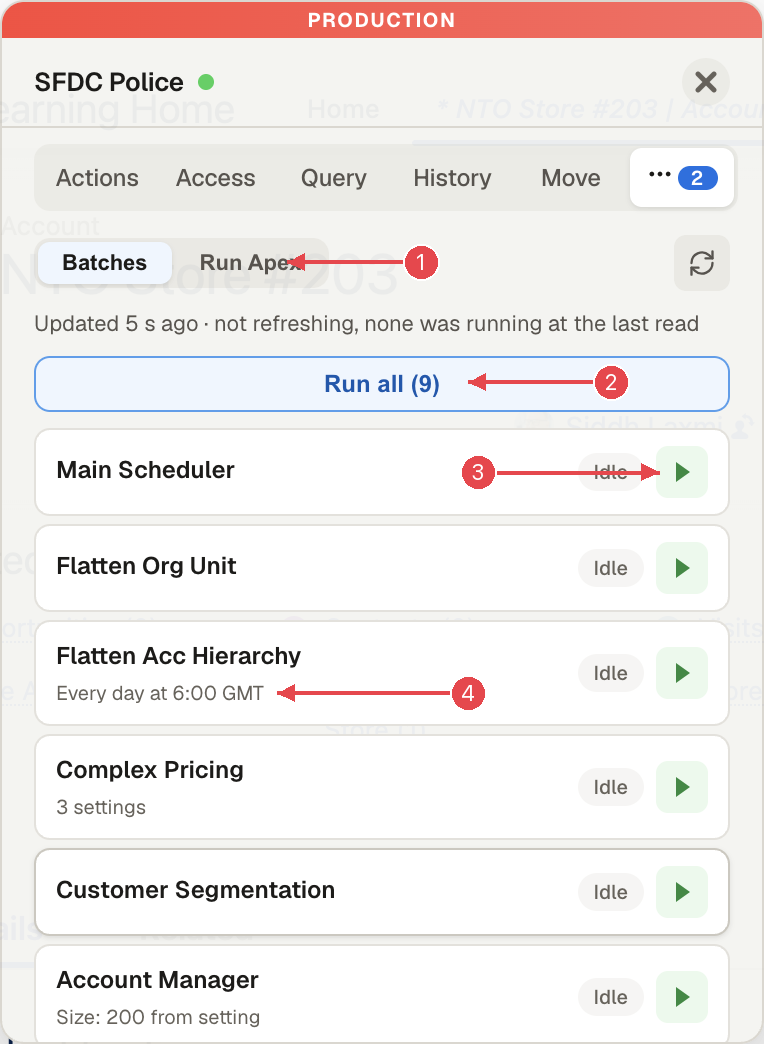
1 Batches and Run Apex. 2 Run all. 3 Run one batch. 4 Its schedule.
What it is. The Batch Manager list, in the panel: each batch with its status and either its size (Apex batches) or its schedule from the Consumer Goods setting (Processing Services batches), a Run button per batch, and Run all for your Run All list. While a job runs it shows progress and an Abort button. From version 1.1.13 it only checks Salesforce again while a job is running.
Run Apex is the second view: search for an Apex class by name and the panel works out how it can be started (as a batch, a queueable, a schedulable, a static method or just its constructor). You confirm the entry point and it runs as anonymous Apex in the org you are on, optionally capturing the debug log. You don't write the anonymous Apex yourself. It runs for real: whatever the class changes is changed.
Use cases
- Re-running a CG batch while looking at the record it should fix, then refreshing the page to check.
- Running a one-off Apex class (a data fix someone wrote) without opening the Developer Console.
Status: which org, which user, how much API left
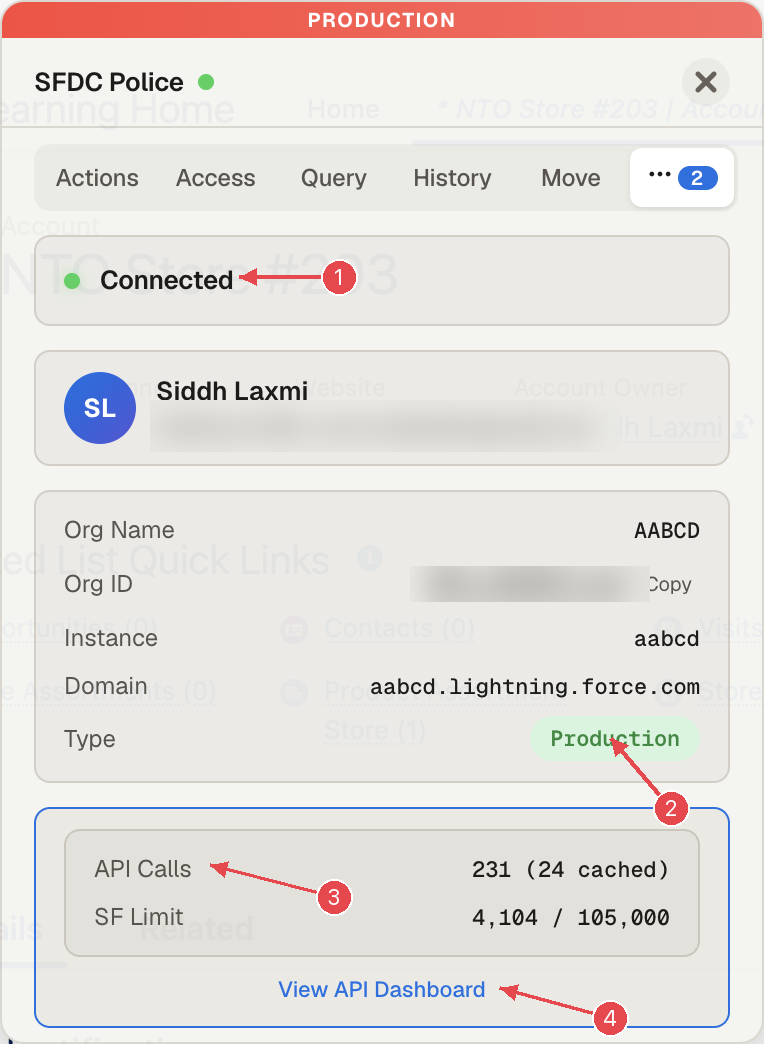
1 Connection. 2 Org name, instance, domain and type. 3 API calls made and the org's daily limit. 4 View API Dashboard.
What it is. A quick health card: whether SFDC Police is connected, who you are signed in as, the org's name, Id, instance, domain and type (Production or Sandbox), how many API calls SFDC Police has made (and how many were served from cache), and the org's API usage against its limit.
Use cases
- "Am I in the right org?" Before a risky change, check the name and type.
- "Are we close to the API limit?" SF Limit shows the org's API requests used against its allowance (Salesforce counts this over a rolling 24 hours, and it includes every integration, not just SFDC Police). View API Dashboard shows which SFDC Police features made calls and forecasts when the org would hit the limit.
Tips
- The panel follows you: open a different record and every tab updates.
- Press Escape to close it.
- Everything the panel reads goes through your own Salesforce session; nothing is sent anywhere else. The one exception is Move, which writes to the other org you pick, through your session there.
This guide describes SFDC Police 1.1.13. If you still have 1.1.9 (chrome://extensions shows your version), you get every tab, but not Related queries, Look up another object or the access check opening on its own; those come with 1.1.13. Full reference: Floating panel docs.