All docs pages (49)
Floating Panel Tools
Every tab of the floating panel: Actions, Access (record and user), Query, History, Move (Beam), Batch and Status.
Updated 2026-11-07
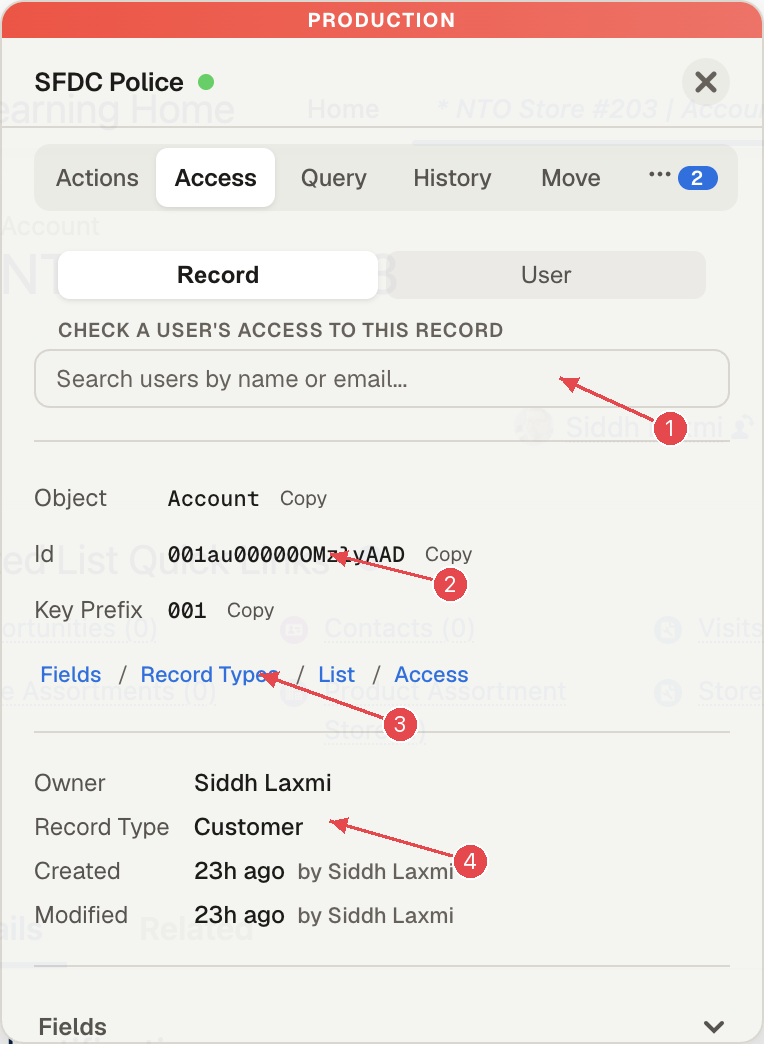
The floating panel opens on any Salesforce page: click the SFDC Police icon in Chrome's toolbar (click again, press Escape or use ✕ to close). It knows the org and the record you are on, and every tab follows you to the next record. Five tabs are visible; Batch and Status are behind ⋯. A red PRODUCTION strip shows in production orgs.
For screenshots and use cases for every tab, read The floating panel, tab by tab.
Actions
What you are on, plus Copy Id, Copy link, Fields (this record's values by API name), Describe (the object's describe) and Schema (related objects), all shown in the panel. Suggested here lists the tools that fit the page (on a record: Related Records, SOQL Builder, Org Process Graph); All tools lists every tool.
Access → Record
- Open Access X-Ray and search for and pick a user. (From version 1.1.13 this section is called Check a user's access to this record.)
- Access X-Ray shows the verdict (Read / Edit / Create / Delete) and about ten layers: object permissions, org-wide default, ownership, role hierarchy, sharing rules, system bypass permissions (View All / Modify All), Salesforce's record-access verdict, field-level security, page layout and record type access. Read, Edit and Delete come from Salesforce's
UserRecordAccess. Create comes from the user's object permissions. IfUserRecordAccessreturns nothing, the verdict uses object permissions only and a warning says so. - Click the same control again to collapse it (from version 1.1.13: Hide access check); the ✕ in the search box checks another user.
The tab also shows the object, Id and key prefix (with copy buttons), shortcuts to the object's fields, record types, list view and access settings, and the owner, record type, created and modified details. From version 1.1.13, Look up another object at the bottom shows another object's details; it lists up to 50 matches and hides Share/Feed/History/ChangeEvent objects unless you type those words.
Access → User
Search a user to see name, username, email, profile, status, last login and user Id, with Edit User, Enable Debug, View Logs, Reset Password (asks to confirm) and Open in Access Editor.
Query
A SOQL editor pre-filled with this record's query. Run with ⌘↵ / Ctrl+Enter or Run; Builder ↗ opens it in SOQL Builder.
From version 1.1.13, Related queries suggests queries for the record's related objects, grouped as Linked through a junction object (one IN query per route, for example an account's customer sets), Child records and Parent records. Filter the list, click a suggestion to put it in the editor, adjust it, then Run; nothing runs until you do. Owner and audit lookups, polymorphic lookups and system objects (Share, History, Feed) are left out. Junction routes are looked for in up to 30 child objects (custom objects first), so a large object may not show every route.
History
- My actions: changes you made through SFDC Police (record edits, permission set assignments, object and field permissions).
- Record trail: Capture run log (turns on debug logging for you; save the record to capture what automation ran), the object's automations (active and inactive), Field Change History for tracked fields, and a link to Process Graph.
Move (Beam)
- Pick the target org (listed as "Org name · host"; open the org in another tab and press refresh if it is missing).
- Choose Include parent hierarchy and Include child records, or Import all related to turn on parents, children and a full scan and analyze in one click.
- Analyze move and review the plan: each record is marked create, reuse or upsert, with how many fields are copied. You can change the choice per record (Upsert · field, Reuse existing or Create new).
- Click Beam. The panel reports how many records were created and reused. Undo deletes the records Beam created.
What Beam changes in the target org. Beam can update records that already exist there. It picks the action for each record like this:
- Upsert (the default when the source record has an external ID value): Beam upserts on that external ID field. If a target record has the same external ID, Salesforce updates it with the source values. If none matches, a new record is created.
- Reuse: a target record with the same Name is used as it is. Beam does not change it.
- Create: a new record is created.
Check the plan before you click Beam, and switch a record to Create new if you do not want a target record changed. Undo only deletes records Beam created; it does not reverse updates made by an upsert. An upsert that updated a target record is counted as reused. A warning shows when the target is a production org.
Batch
Batches lists your Batch Manager batches with status, schedule and size, a Run per batch and Run all. Run Apex searches any Apex class, works out how it can be started (batch, queueable, schedulable, static method or constructor), runs it and can link the debug log. See Batch Manager.
Status
Connection, signed-in user, org name, Id, instance, domain and type, API calls made by SFDC Police (and how many came from cache), the org's API usage against its daily limit, and View API Dashboard.