All docs pages (49)
Permission Matrix
Object, field and tab access for the profiles and permission sets you pick, side by side, with Excel and XML export and in-place edits.
Updated 2026-11-10
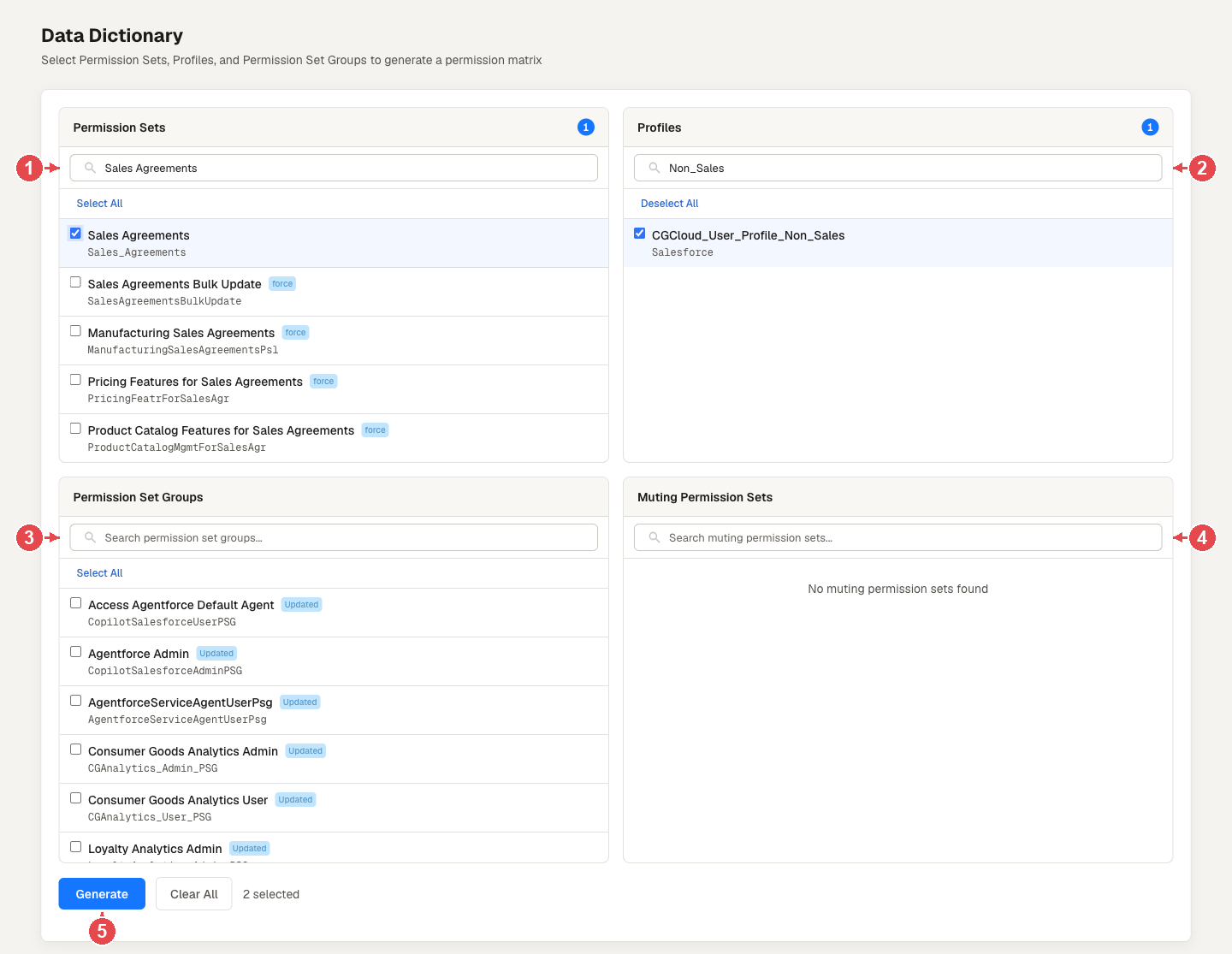
Permission Matrix (called Data Dictionary in versions up to 1.1.13) answers "what can these profiles and permission sets do?" in one grid. You pick the profiles, permission sets and permission set groups to compare, and it reads their object, field and tab settings from your org.
It is not a schema browser. For one object's fields, types and relationships, use Object Data Dictionary in the Metadata menu.
Top screenshot: 1 Permission sets. 2 Profiles. 3 Permission set groups. 4 Muting permission sets. 5 Generate.
Pick what to compare
Four searchable pickers sit at the top of the page:
- Permission sets (the ones you create, not the hidden ones that belong to profiles)
- Profiles
- Permission set groups: each group is expanded into the permission sets it contains, and each of those gets its own column
- Muting permission sets: in version 1.1.13 you can pick one, but it adds no column and changes nothing in the results, so the matrix does not show what a muting set removes. In the release after 1.1.13, each picked muting set gets its own read-only column marked "(mutes)", labelled with its group. A letter or "Yes" in that column is something the set removes from its own permission set group, not something it grants. A user who gets that permission another way keeps it. Muting columns are left out of the XML export.
Click Generate to read the settings. Large orgs are read in full: there is no row cap.
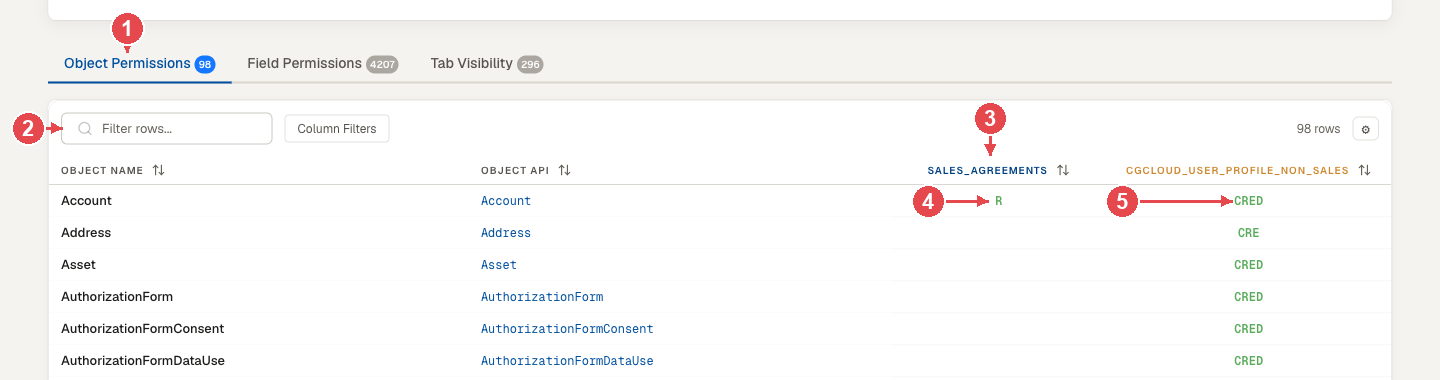
1 The Object Permissions tab. 2 Filter rows. 3 One column per permission set or profile. 4 Account: Read only, from the permission set. 5 Account: Create, Read, Edit, Delete, from the profile.
Read the results
Version 1.1.13 has three tabs, each with a row count. The release after 1.1.13 adds three read-only tabs, for six in total.
| Tab | Rows | Each cell shows |
|---|---|---|
| Object Permissions | One per object | C R E D VA MA VAF: Create, Read, Edit, Delete, View All, Modify All, View All Fields |
| Field Permissions | One per field | R E: Read, Edit |
| Tab Visibility | One per tab | The tab setting as Salesforce stores it |
| System Permissions (release after 1.1.13) | One per permission that is on in at least one column | Whether that permission is on in the column. Muting columns show what the muting set removes |
| Setup Access (release after 1.1.13) | One per setup item | Whether the column gives access to the item. See below |
| Record Types & Layouts (release after 1.1.13) | Described below | Described below |
There is one column per profile or permission set. Filter rows with the search box, and filter or sort any column. Long results scroll smoothly because only the visible rows are drawn.
Field Permissions columns (release after 1.1.13)
The Field Permissions tab has more detail in the release after 1.1.13:
- Object Name and Field Name show labels. In version 1.1.13 these columns show API names.
- Data Type shows the Salesforce type. A lookup shows what it points to, for example
reference (Account). Formula and roll-up fields saycalculated. In version 1.1.13 this column is blank. - Picklist Values lists the active values. In version 1.1.13 this column is blank.
- Required says Yes only when a record can't be created without the field. In version 1.1.13 this column is blank.
A field that Salesforce doesn't describe to you, for example one whose feature is turned off, says "Not described". If an object couldn't be read, its cells say "Not read". Describing fields costs up to one API call per object in the matrix. The result is cached for 30 minutes.
System Permissions (release after 1.1.13)
Org-wide permissions such as Modify All Data, View Setup and API Enabled. The tab lists only the permissions that are on in at least one column, and says how many are off in all of them. Muting columns show what the muting set removes.
Setup Access (release after 1.1.13)
What each column gives access to besides objects and fields: Apex classes, Visualforce pages, custom permissions, flows, apps, connected apps, custom metadata types and custom settings, and other setup items. The tab has one row per item, with its type, name and Id, and a Type filter.
When a name can't be looked up, for example an app the signed-in user can't see, or some item types, the row shows the Id and its type says "(name not read)". The name is never guessed.
Record Types & Layouts (release after 1.1.13)
- Record types: which record types each profile or permission set makes visible. Profiles also show the default record type, as "Visible (default)".
- Layouts: which page layout each profile gets for each object and record type. Permission sets don't assign layouts, so their layout cells show a dash.
Muting sets are left out of this tab. A column that couldn't be read says "Not read" in its cells, never "not visible".
A failure in one of the three new tabs shows its reason on that tab. It does not stop the rest of the matrix.
Export
- Download Excel: one workbook with three sheets (Object Permissions, Field Permissions, Tab Visibility). In the release after 1.1.13 the workbook also has a System Permissions sheet, a Setup Access sheet and a Record Types & Layouts sheet. Its last sheet, About this export, records the org name, Id, host and type (Sandbox or Production), the signed-in user, when the values were read and when the file was exported (UTC), the extension version, the API version and what was selected. A detail that couldn't be read says "Not recorded". Apply Changes ignores these extra sheets.
- Copy CSV and Copy Excel copy the tab you are on to the clipboard.
- Download XML: Profile or PermissionSet metadata XML for each column, with a preview before you download.
An edited workbook can go back into the org through Import from Excel: in the release after 1.1.13 it is the second tab of Permission Matrix, next to Matrix; in 1.1.13 and earlier it is a separate page, Apply Changes.
Edit in place
Turn on Edit Mode after generating. Click an object cell to change Create, Read, Edit, Delete, View All, Modify All or View All Fields; click a field cell to change Read or Edit. Tab visibility is read-only here, and so are the three new tabs in the release after 1.1.13.
Edits wait in a pending list until you press Push to Salesforce, which writes them to the org's ObjectPermissions and FieldPermissions records in batches. The push is not all-or-nothing: if it stops part-way, the changes that already went through stay in Salesforce. Review the pending list before you push.
Related
- Access Editor: change one permission set's settings across every object and field.
- Import from Excel (Apply Changes in 1.1.13 and earlier): deploy an edited matrix workbook.
- Persona Simulator: one user's effective access from every source.