2026-11-07 · 12 min read
CG Doctor: Why a Survey, Promotion or Job List Does or Doesn't Show on a Consumer Goods Visit
Six real use cases: missing survey questions, missing promotions, job lists that went to the wrong people, and reps who can't read the records a visit needs.
In Consumer Goods Cloud, what a rep sees on a visit is decided by a chain of settings: the visit template, the activity's dates and approval, the customer's account sets, the job lists the batches generated, promotions and their stores, and whether the rep can read any of it. When something is missing, finding the broken link usually means a dozen SOQL queries and a lot of guessing.
CG Doctor walks that chain for one visit and tells you, item by item, whether it Shows, Doesn't show or Can't tell, and which check decided it. It is read only. It says Can't tell whenever the org's data can't prove the answer, for example where Salesforce doesn't document a rule. It never guesses.
Every example below is from a live Consumer Goods trial org. Where a rule could be tested there, we tested it by creating records and running the real batches (the promotion and job list batches, and the rep's record access).
Finding the visit
Open CG Doctor from the top bar. CG Doctor is new in 1.1.13; version 1.1.9 doesn't have it. (In the release after 1.1.13 it moves under a Consumer Goods menu and shows only in Consumer Goods orgs.)
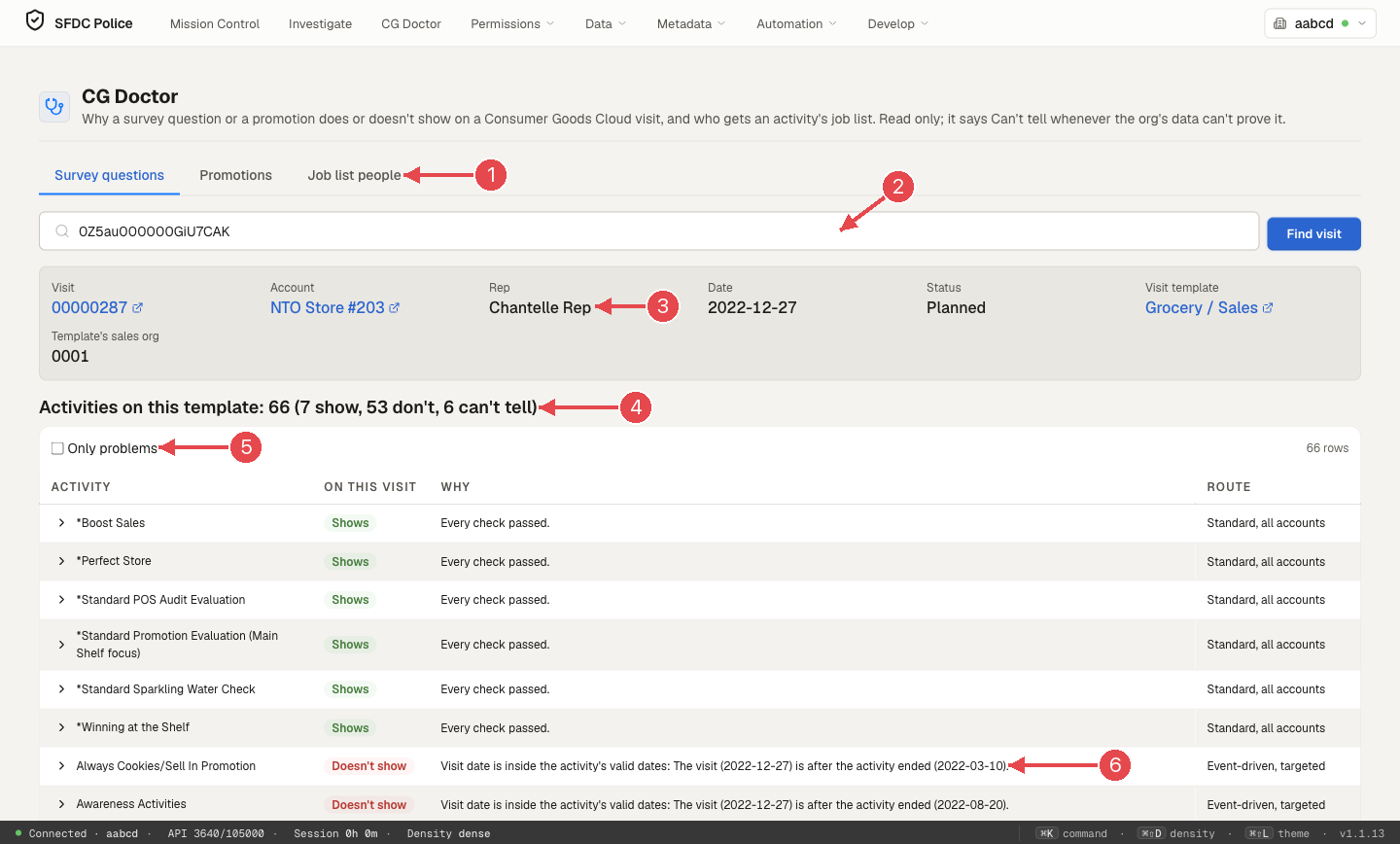
1 The three questions CG Doctor answers. 2 Find the visit. 3 The visit's rep. 4 The verdict counts. 5 The row filter (an earlier "Only problems" box; 1.1.13 has verdict filters instead). 6 The check that decided each row.
- Type a visit number, an account or a rep's name, or paste a Visit Id, and click Find visit.
- The visit card shows the visit, account, rep, date, status, visit template and the template's sales org, with links to each record in Salesforce.
- Pick the tab for your question: Survey questions, Promotions or Job list people. Switching tabs re-reads the same visit.
Use case 1: "My survey isn't on the visit"
Situation. A rep opens visit 00000287 at NTO Store #203 and says a survey is missing.
Steps.
- Find the visit and stay on Survey questions.
- Read the heading: "Activities on this template: 66 (7 show, 53 don't, 6 can't tell)". Every activity on the visit template is listed, not just the ones that show.
- Use the verdict filter above the table (All, Shows, Doesn't show, Can't tell, each with its count) to see only the rows you care about. The screenshot shows an earlier "Only problems" box that this filter replaced.
- Read Why. It gives the one check that decided the row, in plain words, for example "Visit date is inside the activity's valid dates: The visit (2022-12-27) is after the activity ended (2022-03-10)" or "Activity is active: The activity is inactive, so its questions are not offered."
- Read Route: Standard, all accounts, Standard, targeted, Event-driven, targeted or Event-driven, not targeted. A targeted activity needs the visit's account to be targeted. An event-driven one also needs a job list that fits this visit (the visit's rep, account and template).
- Click a row to expand it. You see every check in order (pass, fail, unknown or not applicable), and the values it read, grouped by record with names and links.
On this visit, 53 activities don't show because the visit date is outside their valid dates or they are inactive, and 6 are Can't tell. For example "Approval is empty. Salesforce documents that questions need Approved or Not Relevant; what an empty value does is not documented."
What to do. Fix what the failing check names: extend the activity's dates, activate it, set its approval, or generate the job list. Then click Find visit again to re-check.
Use case 2: "One question is missing"
Situation. The survey shows, but one question isn't there.
Steps.
- On Survey questions, scroll to Questions of the activities that show.
- Type the question's name. CG Doctor says why it is or isn't there. Each activity also has a check that it has at least one active, included question (inactive or excluded question links don't count).
Use case 3: "The promotion isn't on the visit"
Situation. Visit 00001210 at NTO Atlanta should show a running promotion.
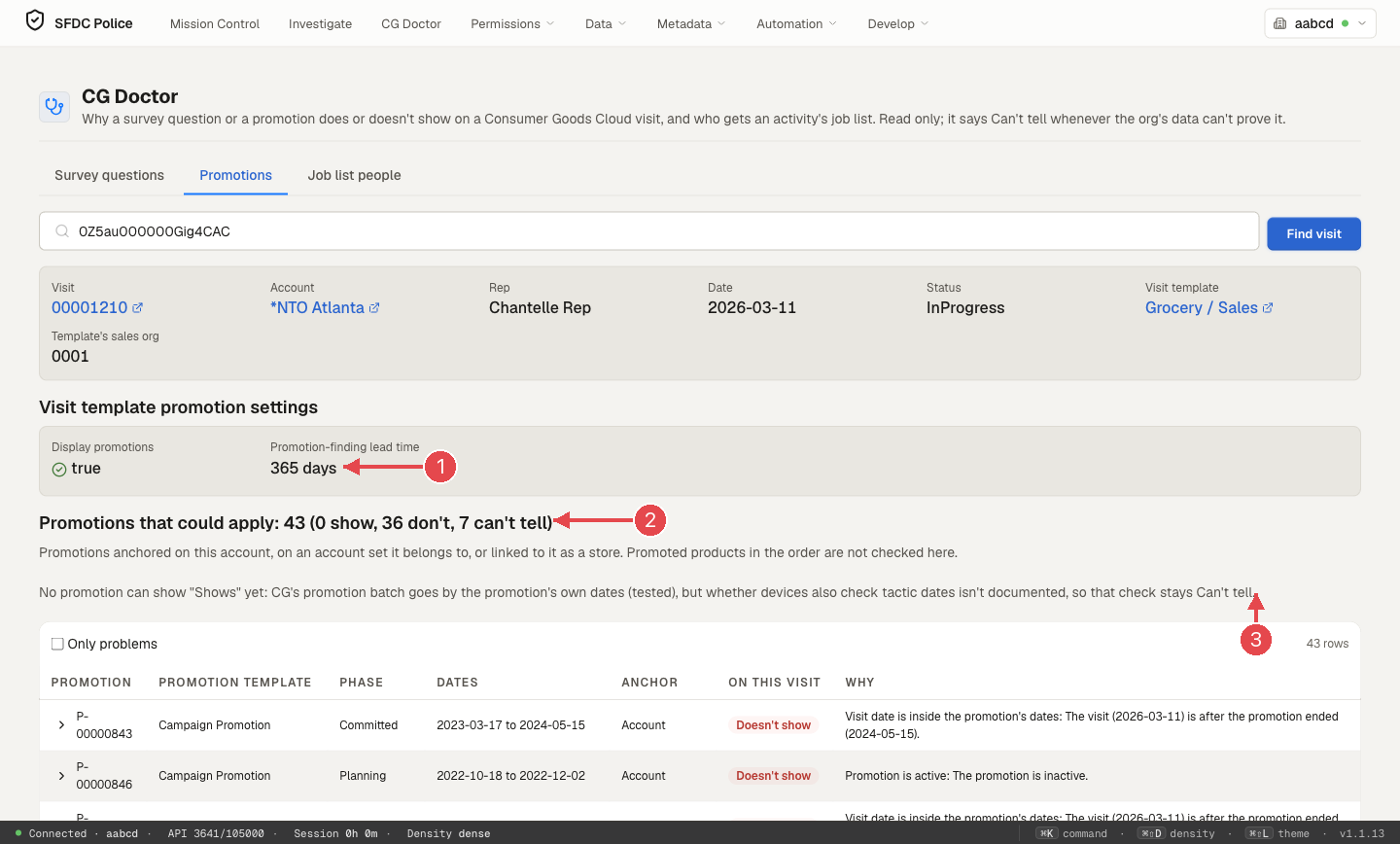
1 The visit template's promotion settings. 2 How many promotions could apply. 3 The one thing CG Doctor can't prove yet.
Steps.
- Switch to Promotions.
- Check Visit template promotion settings: Display promotions must be true, and the promotion-finding lead time (here 365 days) sets how far ahead promotions are looked for.
- Read "Promotions that could apply: 43 (0 show, 36 don't, 7 can't tell)". These are promotions anchored on this account, on an account set it belongs to, or linked to it as a store.
- Read each row's Why: "The visit (2026-03-11) is after the promotion ended (2024-05-15)", "The promotion is inactive", and so on.
Why nothing says "Shows". We tested how Consumer Goods links promotions to stores: the promotion aggregation batch follows the promotion's own Date From and Date Thru on the day it runs. Whether devices also check each tactic's dates isn't documented, so CG Doctor leaves that check at Can't tell rather than guess. Promoted products in an order are not checked here.
What to do. For a promotion that should show: extend its dates or activate it, make sure the account is in its account set or store list, then let the promotion batch run (or start it from Batch Manager).
Use case 4: "The activity went to the wrong people"
Situation. An activity's job lists were generated, but you're not sure the right reps got them.
Steps.
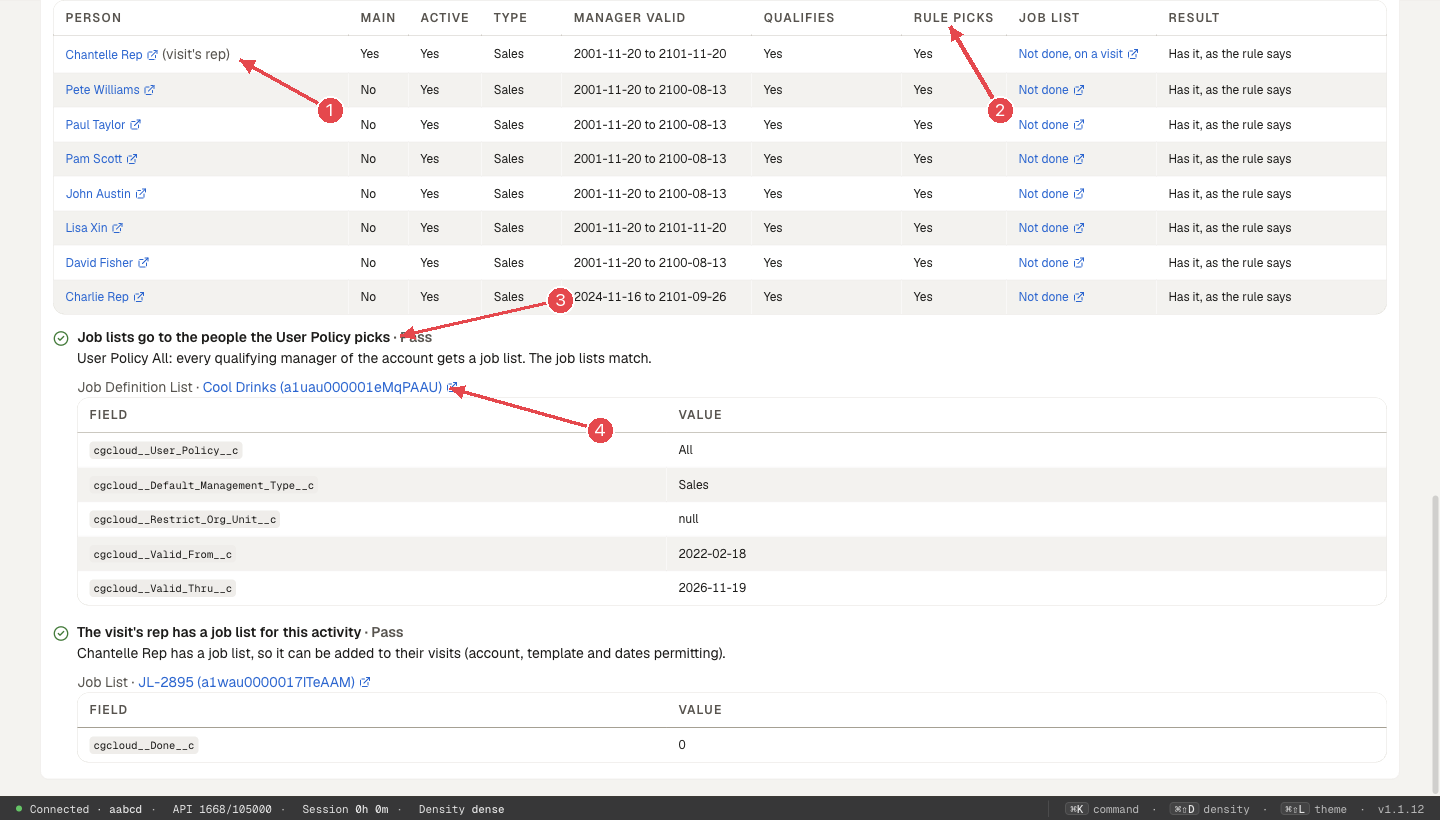
- Switch to Job list people. It lists the event-driven activities of the visit's template that target the visit's account or already have a job list on it. Each gets a verdict; expand one.
- The table lists the account's managers and anyone holding a job list: main or not, active, type, valid dates, whether they qualify, whether the rule picks them, their job list (with its Done value) and the result.
- The rule is Salesforce's: active managers of the activity's management type whose dates overlap the activity, then the activity's User Policy (All, Only Main or First) chooses among them.
- The verdict is Right people, Wrong people or Can't tell, with the check that decided it.
Good to know. We confirmed live that the job list batch with policy All gives every overlapping active manager a job list, and that it only regenerates activities that are still valid. Consumer Goods also blocks editing an active activity's policy or dates, so a fix may mean a new activity. Done values are 0 (Not Done), 1 (Done) and 2 (Canceled).
Use case 5: "The rep can't see it, but everything passes"
Situation. Every check passes, but the rep still doesn't see the survey. Often the reason is plain Salesforce access: the rep can't read the account or the activity.
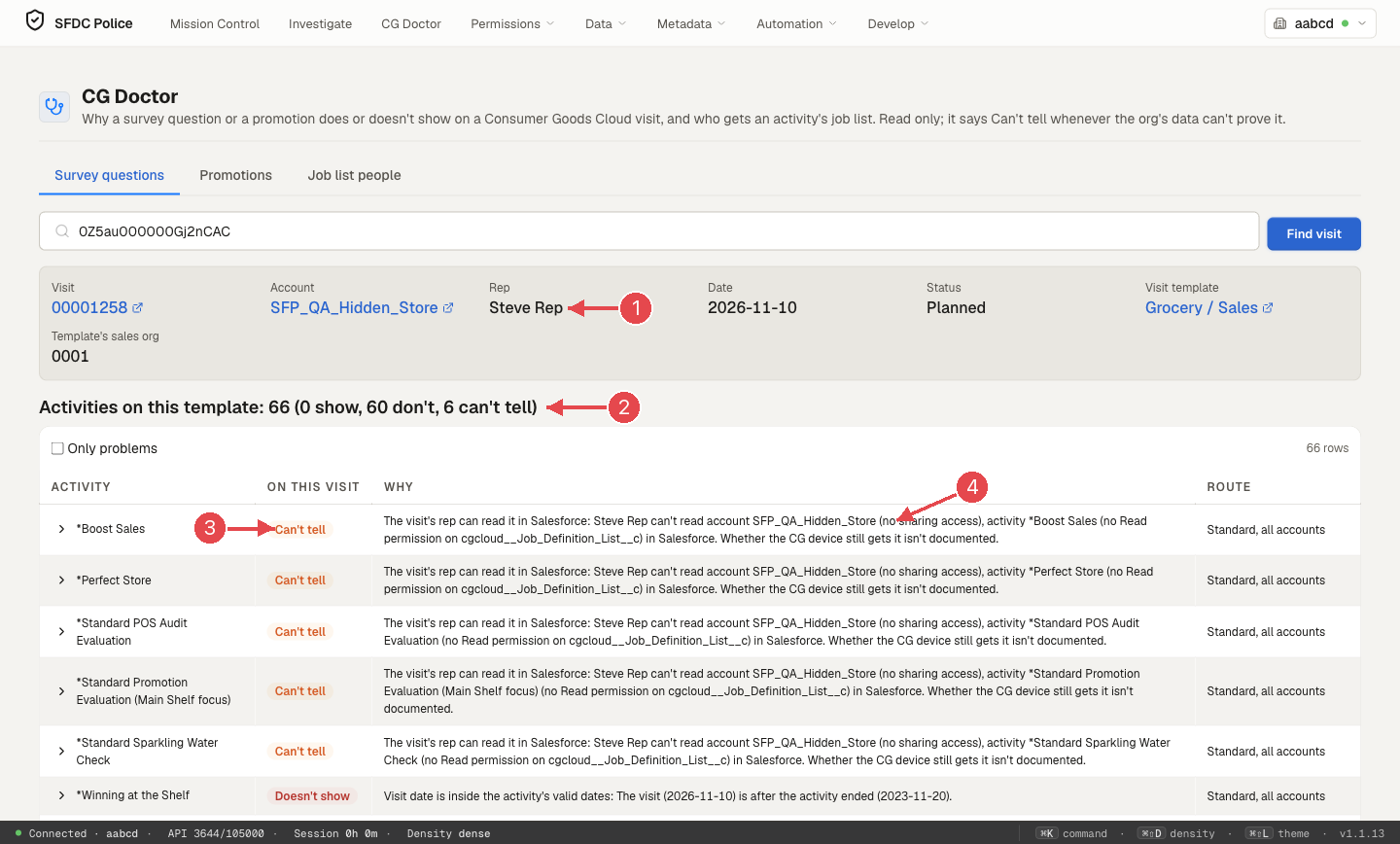
1 The visit's rep. 2 Every activity is now Can't tell. 3 Can't tell. 4 Why: no sharing access to the account, no Read permission on the activity's object.
Every tab now checks whether the visit's rep can read the main records behind the answer: the account and the activity (Survey questions, Job list people), or the promotion and its included tactics (Promotions). Questions and job list records themselves aren't checked. It uses Salesforce's own UserRecordAccess (which covers sharing and object permissions) plus the rep's object permissions, which say which of the two is missing. On Job list people the access result is shown but doesn't change the Right people or Wrong people verdict. On visit 00001258, Steve Rep "can't read account SFP_QA_Hidden_Store (no sharing access)" and has "no Read permission on cgcloud__Job_Definition_List__c", so every activity that would otherwise show becomes Can't tell.
Why Can't tell and not Doesn't show? Because whether the Consumer Goods device sync uses the rep's own access isn't documented. CG Doctor shows the access gap and tells you how to settle it: check the rep's sharing (rules, role, account team) and profile or permission sets, or ask your CG admin how device sync is set up. Restriction rules are not covered by UserRecordAccess.
To see the full access picture for that rep and record, use the floating panel's Access → Record check (guide).
Use case 6: Checking a fix
After you change something (dates, approval, account set, sharing, or a batch run), click Find visit again. CG Doctor reads everything fresh, so the counts and verdicts reflect the org as it is now. It writes nothing, so you can run it as often as you like, in production too.
What each verdict means
| Verdict | Meaning |
|---|---|
| Shows | Every check CG Doctor knows passed. |
| Doesn't show | A documented rule says no; Why names it. |
| Can't tell | The org's data can't prove it either way, usually because Salesforce doesn't document the rule, or the rep's access is in question. The expanded row says what would settle it. |
CG Doctor is new in SFDC Police 1.1.13; it is not in 1.1.9. Reference: CG Doctor docs.