2026-11-07 · 9 min read
What's New: Faster Related Records, Related Queries, a Clearer Access Check, and CG Doctor
Step-by-step guides with real use cases for the newest SFDC Police features — tested end to end on a live Consumer Goods Cloud org.
Every feature below comes in version 1.1.13 and was tested end to end on a live Salesforce org (a Consumer Goods Cloud trial) before release. Version 1.1.9 doesn't have them. Each section says what the feature is for, when you would reach for it, and exactly how to use it.
1. Related Records: faster, readable, and one click to SOQL
Related Records shows everything connected to a record: its parents and every child list. On a large account it now loads about four times faster, names lists the way Salesforce does, filters long lists, and hands any list straight to SOQL Builder.
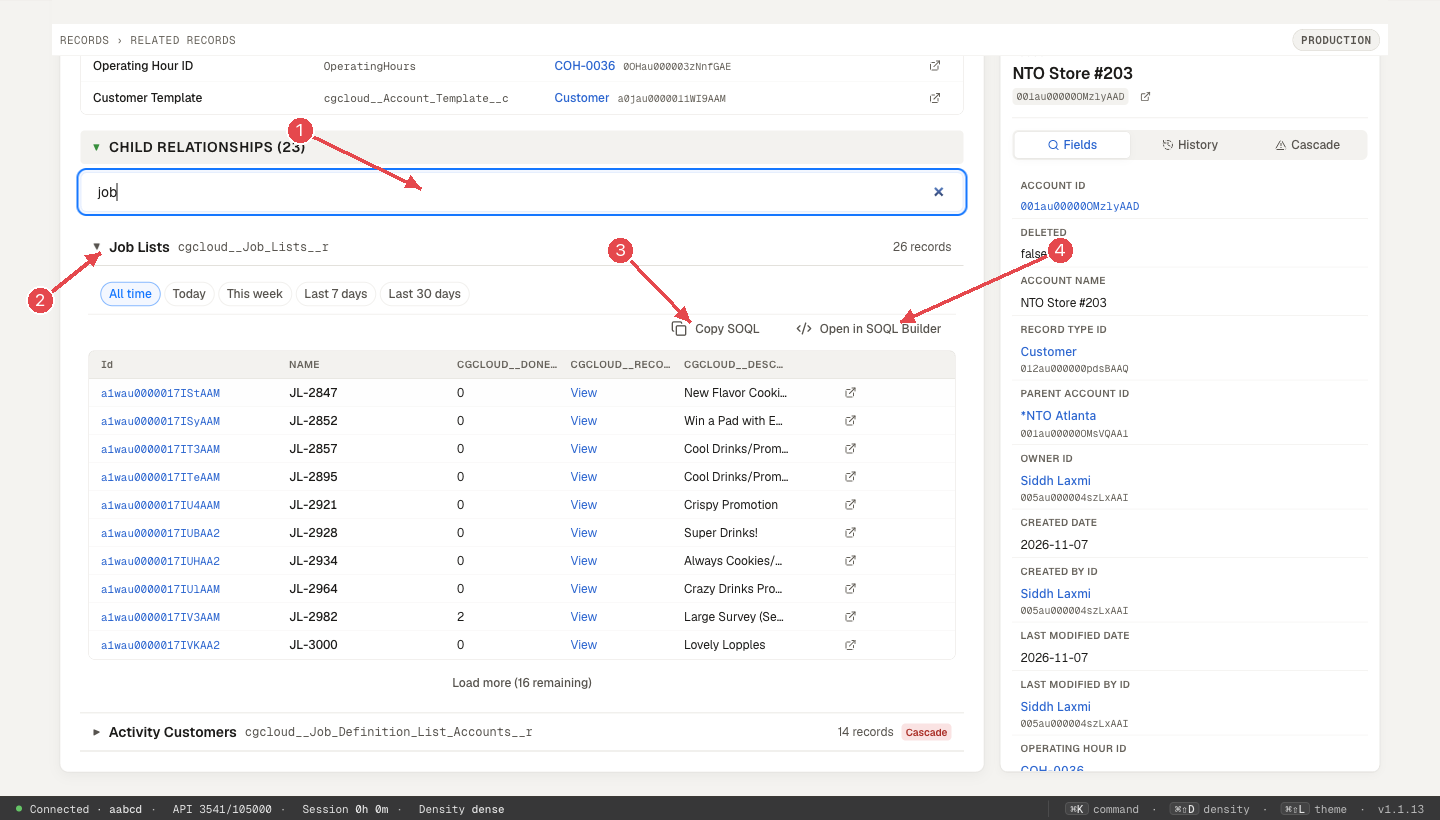
In the screenshot: 1 filter the lists, 2 open a list (shown by its readable name), 3 Copy SOQL, 4 Open in SOQL Builder.
Use cases
- "What would deleting this account take with it?" Open the account and click Cascade impact: the inspector previews what a delete would remove along with it.
- Data clean-up before a migration. Filter the lists to the objects you are moving (for example "job" or "visit") and check how many child records each account really has.
- Investigating a support ticket. A customer says a visit or order is missing: open the account, filter to that list, and open the records from there.
- Handing a list to a teammate. Copy the list's SOQL and paste it into a ticket so they can run exactly what you saw.
How to use it
- Open Related Records (from SFDC Police's tools, or from the floating panel's Actions tab under Suggested here) and paste a record Id, or search by name.
- The record card and its parent lookups appear in about a second. Child lists fill in as their counts arrive; the heading says "still counting…" until the last one. You can open a list while counting continues.
- With more than five lists, type in Filter related lists to narrow them by name, API name or object.
- Open a list to see its records. Use the date chips (Today, This week, Last 7/30 days) to narrow by created date.
- Click Copy SOQL to copy the list's query, or Open in SOQL Builder to run it there over all records, not just the 10 shown.
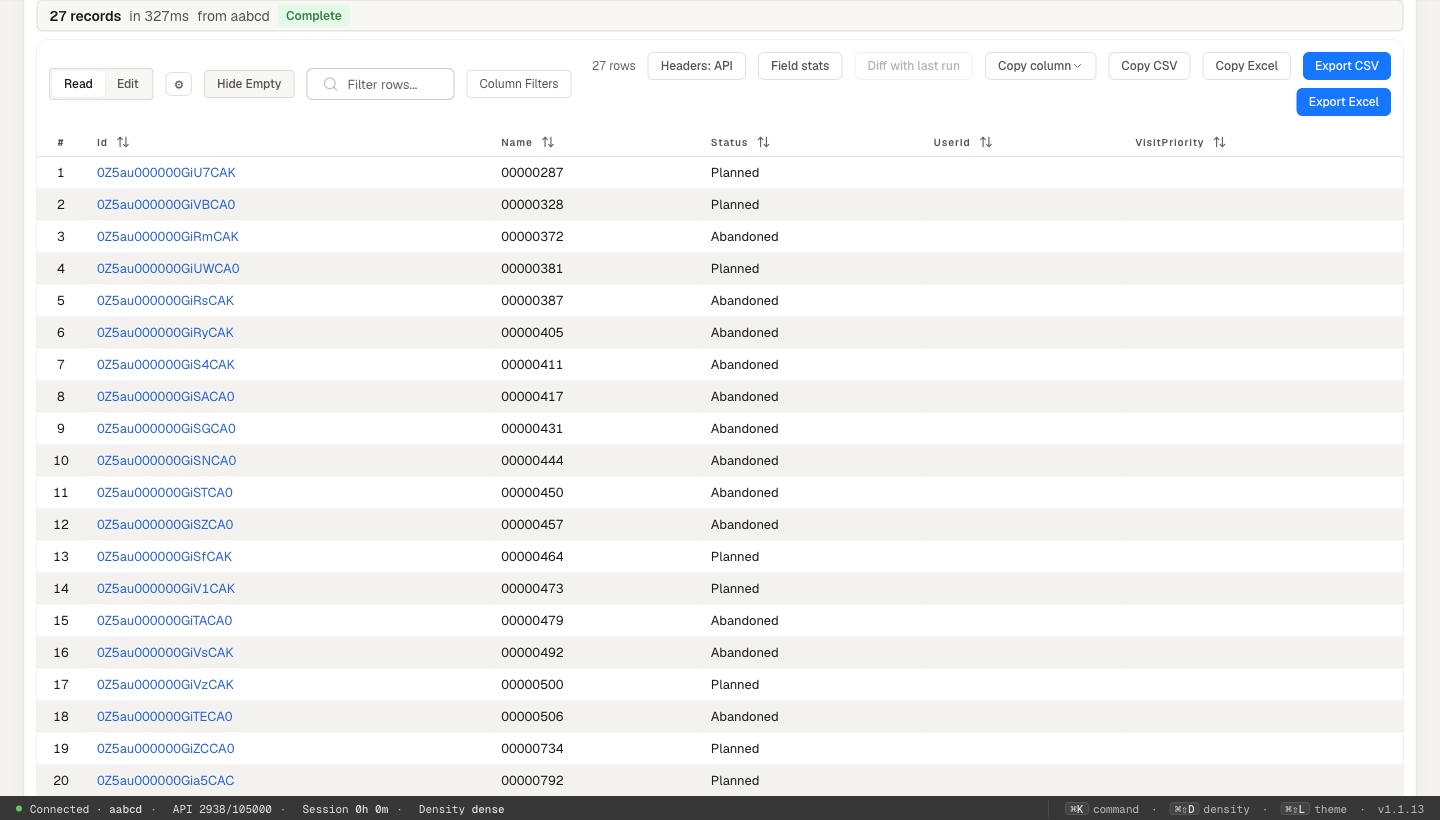
Good to know: hyperlink and image formula fields now show as a link or text instead of raw HTML. Related Records now asks which lists have any records in one query per 20 relationships, then counts only the lists that do. On a large Consumer Goods account the full load went from about 10 seconds to about 2, with fewer API calls.
2. Related queries in the floating panel
On any record page, the floating panel's Query tab can now suggest a query for every object related to that record, so you can pick the one your issue needs instead of writing it.
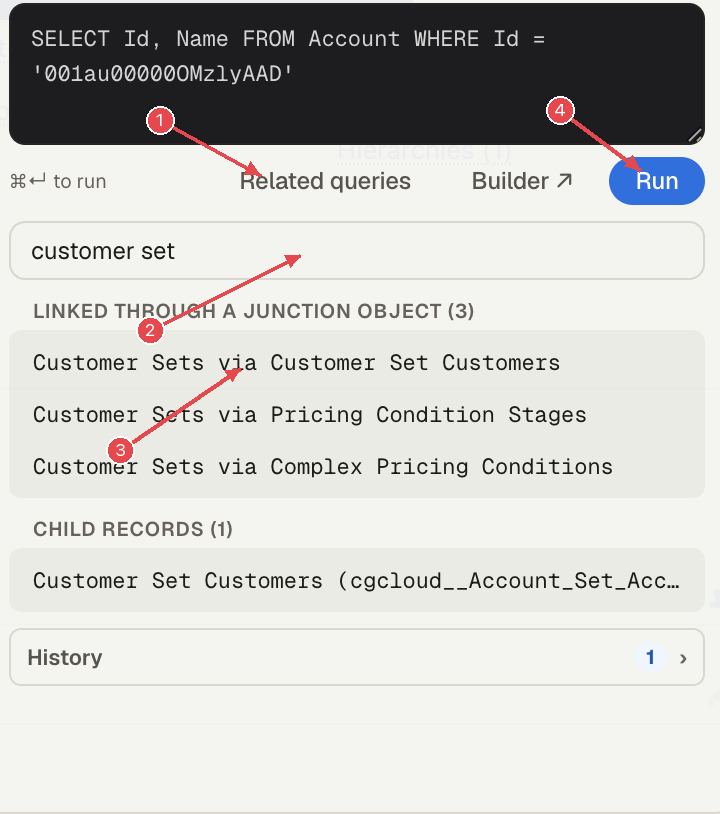
In the screenshot: 1 Related queries, 2 filter, 3 pick a suggestion, 4 Run.
Use cases
- Junction lookups without writing a semi-join. On an Account, "Customer Sets via Customer Set Customers" gives you
SELECT Id, Name FROM cgcloud__Account_Set__c WHERE Id IN (SELECT cgcloud__Account_Set__c FROM cgcloud__Account_Set_Account__c WHERE cgcloud__Account_Set_Account__c = '…'). On a Customer Set, the same feature lists its Accounts. - Child records at a glance. Pick "Visits" or "Job Lists" to query this account's children directly.
- Checking the parent side. Parent suggestions show the records this one points to (for example its account template), useful when a value seems to come from nowhere.
- Learning the data model. Browsing the list on an unfamiliar object shows how it connects to everything else.
How to use it
- Open the floating panel on a record page and go to Query.
- Click Related queries. The panel groups suggestions into Linked through a junction object, Child records and Parent records.
- Type in Filter related objects to narrow a long list (for example "customer set").
- Click a suggestion to put it in the editor. Nothing runs until you press Run, so you can add fields or filters first.
3. Checking a user's access to a record
"Why can't my rep see this?" is now a single step. Access X-Ray explains a user's access to the record you are on, layer by layer. Its verdict comes from Salesforce's own record-access answer (UserRecordAccess); if that check fails or returns nothing, X-Ray warns that the verdict may be incomplete.
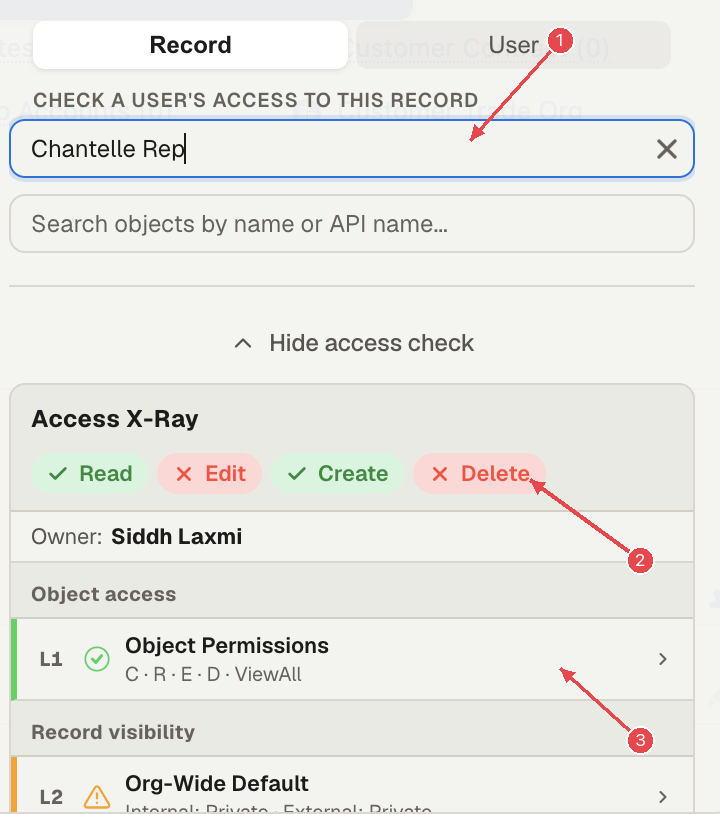
In the screenshot: 1 pick the user, 2 the verdict, 3 each layer that explains it.
Use cases
- A rep says a record is missing. Pick the rep: the verdict shows "No access — record is invisible" and the layers show why (for example a Private org-wide default, no role-hierarchy or sharing-rule grant).
- Someone can see more than they should. Pick the user: the System Bypass layer names permissions such as View All, and the Object Permissions layer shows where it comes from.
- Before changing sharing. Check one user who should keep access and one who should not, before and after the change.
- Explaining access in an audit. Each layer lists the setting and source behind the answer, so you can quote it.
How to use it
- Open a record in Salesforce and open the floating panel.
- Go to Access → Record. Under Check a user's access to this record, search for the user by name or email and pick them.
- Access X-Ray opens straight away with the verdict (Read / Edit / Create / Delete) and about ten layers: object permissions, org-wide default, ownership, role hierarchy, sharing rules, system bypass permissions, the record-access verdict, field-level security, page layout and record type access.
- Open any layer for its details. Use the ✕ in the search box to check another user.
To look up a different object's details, use Look up another object at the bottom of the same tab. (The screenshot above was taken before that search moved to the bottom.)
4. Moving a record to another org (Beam)
The floating panel's Move tab copies the record you are on into another org you are signed in to. Target orgs are now listed by name, so it is harder to pick the wrong one.
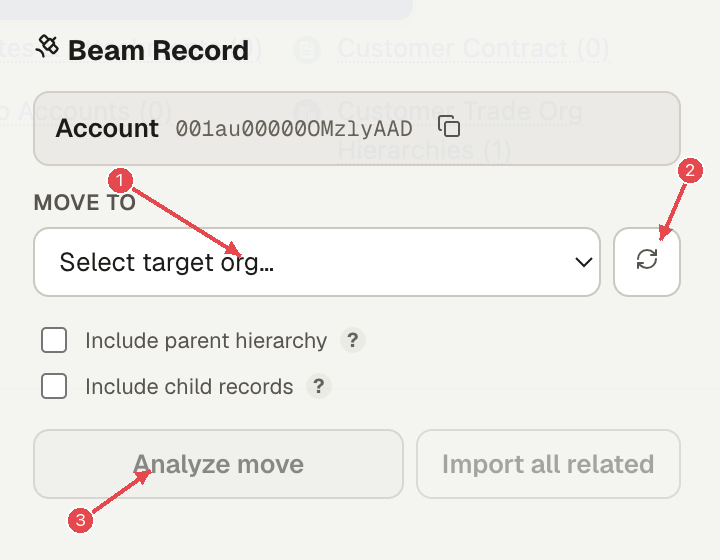
In the screenshot: 1 pick the target org, 2 refresh the list of orgs, 3 Analyze move.
Use cases
- Reproducing a bug in a sandbox. Beam the exact record from production so you can test on the same data.
- Seeding a demo or training org with a few realistic records.
- Copying a record with its parents. Tick Include parent hierarchy so lookups resolve in the target.
- Copying a record with its children. Tick Include child records when you need the full picture.
How to use it
- Open the record and the floating panel, then go to Move.
- Under Move to, pick the target org. It is shown as "Org name · host"; open the target org in another tab first if it is missing, then press refresh.
- Choose whether to include the parent hierarchy and child records, then click Analyze move.
- Review the plan: each record, whether it will be created or reused, and how many fields will be copied. A warning appears if the target is a production org.
- Click Beam. The panel reports how many records were created and reused.
5. CG Doctor: who should get an activity's job list
For Consumer Goods Cloud, CG Doctor explains why something does or doesn't show on a visit. Its new Job list people tab answers "did this activity's job list go to the right people?"
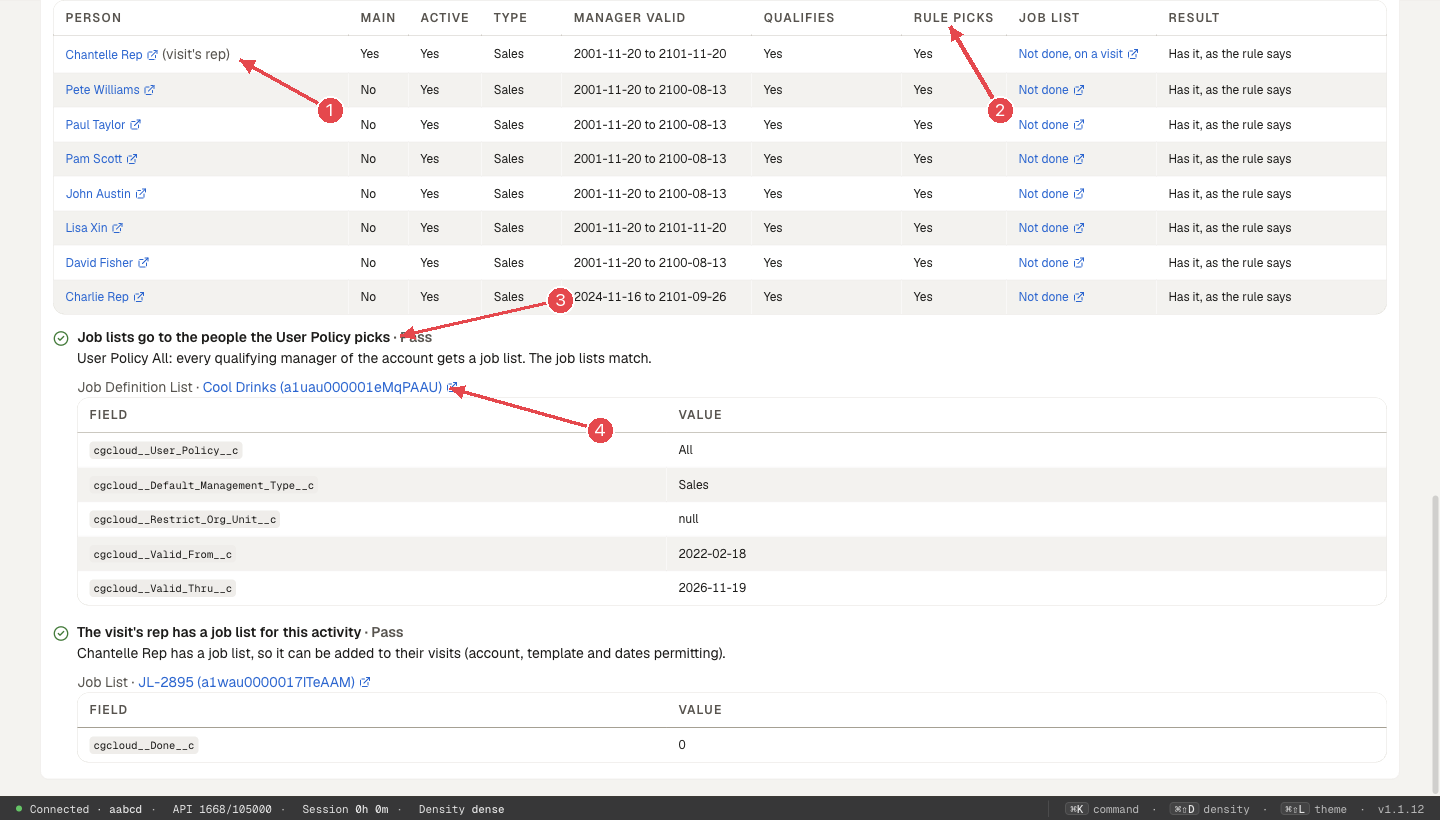
In the screenshot: 1 the visit's rep, 2 whether the rule picks each person, 3 the check that decided the answer, 4 the values it read, by record.
Use cases
- A rep says a survey or task is missing from their visit. Check whether the rep has a job list for that activity on that account.
- An activity went to the wrong people. See who Salesforce's rule picks (active managers of the right type whose dates overlap the activity, then the User Policy: All, Only Main or First) and who actually holds a job list.
- After changing account managers. Confirm the job lists followed, or see that they are still as the batch last left them.
- Checking visibility, not just setup. Every tab also checks whether the visit's rep can read the main records behind the answer (the account and activity, or the promotion and its tactics).
How to use it
- Open CG Doctor and pick a visit (search by visit number, account or rep, or paste a Visit Id).
- Choose the tab for your question: Survey questions, Promotions or Job list people.
- Each item says Shows, Doesn't show or Can't tell (or Right people, Wrong people, Can't tell), with the check that decided it.
- Expand an item to see every check, the values it read (grouped by record, with names and links), and what would settle anything it can't tell.
CG Doctor says Can't tell whenever the org's data can't prove the answer, for example where Salesforce doesn't document a rule. It never guesses.
Try it
These features arrive in SFDC Police 1.1.13. For the full reference, see the docs for Related Records, the floating panel tools and CG Doctor. Install from the Chrome Web Store, where 1.1.13 is now the published version; Chrome updates an installed extension on its own. Check that the extension's version is 1.1.13 or later, because 1.1.9 doesn't have these features.