2026-11-07 · 9 min read
Related Records: What Is Connected to a Record, Counted in Seconds and One Click from SOQL
A hands-on guide with six real use cases: cascade deletes, migration clean-up, support tickets, handing a list to SOQL Builder, and reading formula links.
Salesforce shows a record's related lists, but only the ones on the page layout, a few rows at a time, and with no way to query them further. Related Records shows what is connected to a record: the parent records its lookups point to and every child list that has records, with counts, and hands any list to SOQL Builder in one click.
Version 1.1.13 makes it much faster on records with many relationships, and adds readable list names, a filter, and Copy SOQL and Open in SOQL Builder on every list. (1.1.9, the previous version, has none of these.) Everything below was tested on a Consumer Goods account with 23 related lists.
Opening it
- From SFDC Police's tools: Related Records, then paste a record Id, or pick an object and search its records by name.
- From a record page: open the floating panel, Actions → Suggested here → Related Records. It opens on the record you are on.
The screen
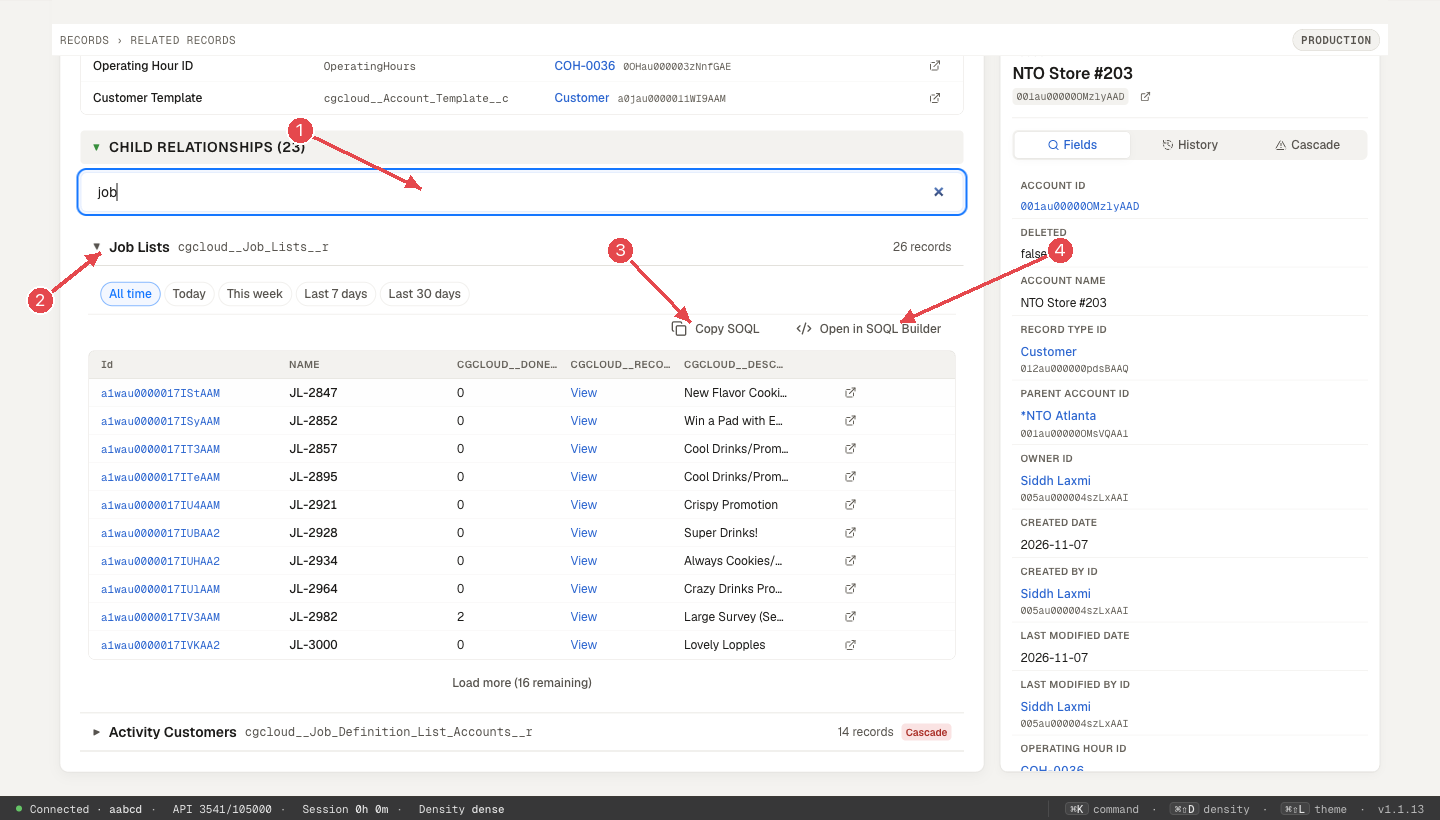
1 Filter the lists. 2 A list, by its readable name. 3 Copy SOQL. 4 Open in SOQL Builder.
- The record card at the top, with Open in Salesforce.
- Parents: each filled-in lookup on the record and the record it points to. It reads up to 20 fields of the record, so on an object with a great many lookups some may not appear.
- Child lists: one per relationship that has records, largest first, named the way Salesforce names the object (Visits, Job Lists), with the relationship's API name underneath and a count. Relationships with no records, and deprecated or non-queryable ones, are left out.
How it loads fast
The record card and parents appear in about a second. Child lists fill in as their counts arrive, and the heading says "still counting…" until the last one; you can open a list while the rest are counted.
Counting used to cost one COUNT() query per relationship: on our CG account that took about 10 seconds and about 150 API calls. From version 1.1.13, Related Records asks Salesforce, 20 relationships per query, whether each list has any rows at all, and only counts the ones that do. If Salesforce refuses one of those queries, it falls back to counting that group one by one. The same account now loads in about 2 seconds with about 30 calls, and shows the same lists and counts.
Use case 1: "What would deleting this account take with it?"
- Open the account in Related Records.
- Click Cascade impact. The inspector on the right switches to its Cascade tab and counts the child records Salesforce marks for deletion along with the record: master-detail children, plus standard ones Salesforce also deletes (such as an account's contacts). It looks one level down only, so it does not count grandchildren that would go too. It only reads; it never deletes anything.
- Remember Salesforce's rules for the rest: a lookup child normally stays and its lookup is cleared, unless the lookup is set to block deletion, in which case the delete is refused while children exist.
- Open the child lists involved to see the actual records before you delete anything.
Use case 2: Cleaning up before a migration
- Open a sample account.
- Type in Filter related lists (it appears when there are more than five lists) to narrow to what you are moving, for example "visit" or "job". The filter matches the list name, the API name and the object.
- Compare the counts across a few accounts to estimate volumes, then plan the Data Migrator run.
Use case 3: Investigating a support ticket
Situation. "A visit is missing from this store."
- Open the store's account and the Visits list.
- Use the date chips (Today, This week, Last 7 days, Last 30 days) to narrow by created date.
- Open the visit from the list. If it isn't there, no visit you can see points to this account: it may never have been created, been deleted, or be linked to a different account. Check CG Doctor (from version 1.1.13) for why something doesn't show on a visit that does exist.
Use case 4: Taking a list further in SOQL
A list shows 10 records at first, and Load more pages through more (up to 2,000, Salesforce's limit for paging). When you need all of them, filtered or exported:
- Open the list and click Open in SOQL Builder. The list's own query opens there, without the 10-row limit.
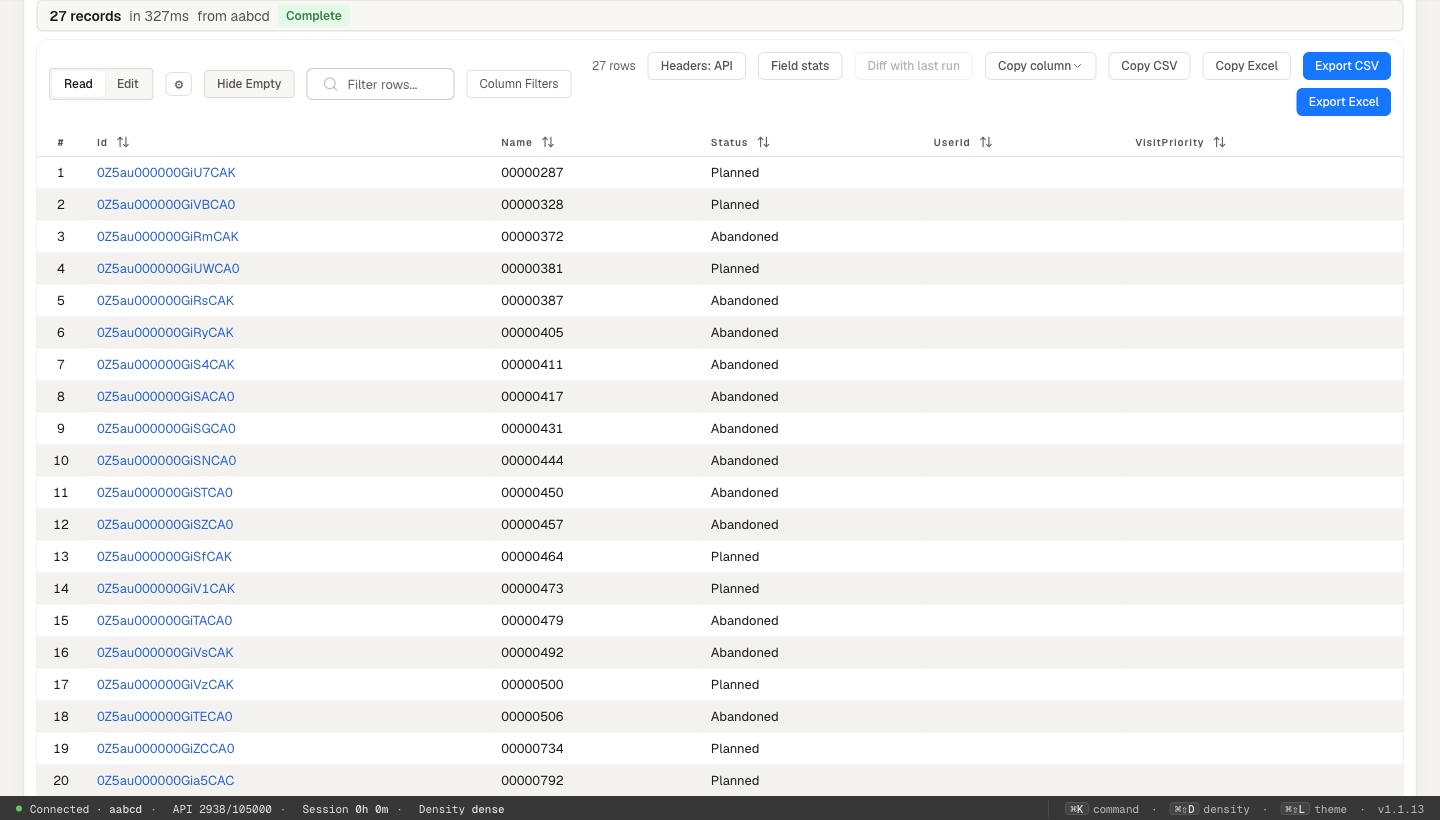
- Add fields or filters, then run, edit or export.
- Or click Copy SOQL to paste the exact query into a ticket, so a teammate runs exactly what you saw.
Use case 5: Reading formula links
Hyperlink and image formula fields used to show as raw HTML (<a href=…>). From version 1.1.13 they show as a link or plain text; an image formula shows its alt text (or "[image]"), not the picture. Only http(s) and relative links become clickable; anything else is shown as text.
Use case 6: Learning an unfamiliar data model
Open a record you know, say an account, and read the child lists from top to bottom: each name, API name and object tells you how the org's data hangs together, including managed-package objects. Then open the same record in the floating panel's Query → Related queries (from version 1.1.13) to get ready-made queries for its relationships, including junction-object routes (panel guide).
Quick reference
| You want to | Do this |
|---|---|
| See everything connected to a record | Open it in Related Records |
| Find one list among many | Filter related lists |
| Know what a delete takes with it | Cascade impact |
| Narrow a list by date | The date chips |
| Get every record, not just the first 10 | Open in SOQL Builder |
| Share the exact query | Copy SOQL |
This guide describes Related Records in SFDC Police 1.1.13. Reference: Related Records docs.